

Every Claude for M365 add-in shares one store
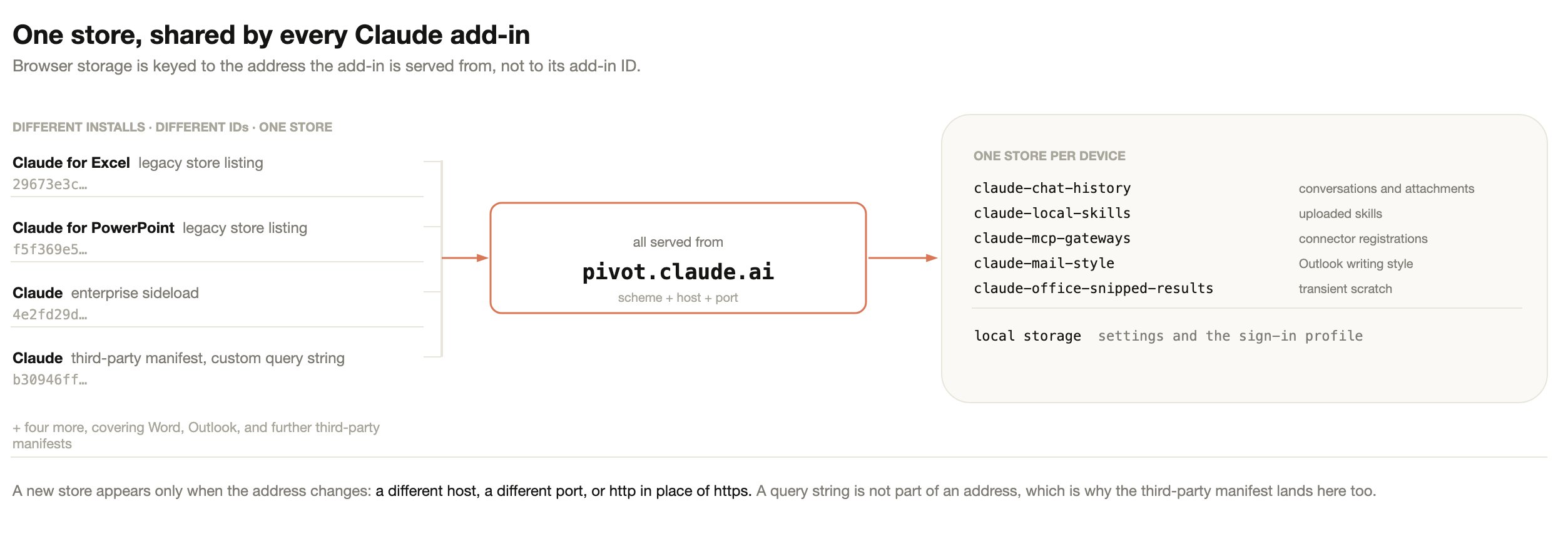
Users run more than one Claude for M365 add-in over time: the per-app store listings, an enterprise sideload, or a custom manifest that points the add-in at your own cloud. All of them are served fromhttps://pivot.claude.ai, and
browser storage is keyed to that address. They therefore read and write the same
store on a given device.
<SourceLocation> URL, and opens it in an embedded browser. From that point the
browser behaves as any browser does: it hands storage to the page’s address,
meaning its scheme, host, and port. The add-in’s ID, version, and display name
never enter the lookup, so a manifest is closer to a bookmark than to a
container. Deleting a bookmark does not delete the site’s cookies.
Two consequences follow:
- A query string is not part of an address. A third-party manifest is built for one organization and carries that organization’s configuration in a query string, so no two are alike. All of them still land in the same store as every other install.
- Changing the address does create a new, empty store. Serving the add-in from a
different host, a different port, or over
httpinstead ofhttpsgives it somewhere else to read and write. The previous store still exists, but nothing reads it.
What Claude for M365 stores
The table below lists the add-in’s IndexedDB databases and its local storage, all inside the signed-in user’s operating system profile, with what each one holds and what it is scoped to.
Conversations, memory notes, and the Outlook writing style guide are scoped to
the individual user. Uploaded skills, connector registrations, crash-detection
records, and conversation parts moved out of Claude’s working context are
scoped to the storage location instead, so anyone who reaches the same store
shares them. The Windows and macOS sections below describe what splits a store
on each platform.
This only applies where people share a single operating system account. That
arrangement already shares the browser profile, saved sessions, and local files
between them, so the guidance is the same as for any browser-based tool: give
each person their own operating system account.
Apart from the edits a user asks Claude to make, Claude for M365 writes two
values into the Office document itself, as add-in settings, when its task pane
opens in Excel, PowerPoint, or Word. The first,
claude.fileId, is a random
identifier that lets the add-in recognize the file after a rename or a Save As,
and reopen the user’s most recent conversation in that file when the pane next
opens in it. A copy made with Save As keeps the same identifier, so in a copy,
or in the same file under another name or folder, the pane offers the earlier
conversation rather than reopening it. The second,
Office.AutoShowTaskpaneWithDocument, asks Office to open the Claude task pane
when the document opens. Microsoft supports automatic opening
only for add-ins that are centrally deployed or sideloaded, and only for people
who already have that add-in.
Neither value holds user information or conversation content. Office stores
both in the file together with a reference to the add-in, so they travel with
the document if it is shared, and the file shows that the add-in was used with
it.
Session logging is a setting in Claude for Excel that writes conversation
summaries into the workbook. It is off by default. A user turns it on in the
add-in’s settings or by asking Claude. The setting is saved in local storage,
not in the workbook, so it applies to every workbook opened with that browser
profile. While it is on, Claude keeps a sheet named Claude Log as the first
tab of the workbook and adds a row for each exchange, with the date, a summary
of what the user asked, what Claude did, and the result.
The Claude Log sheet is ordinary workbook content. It travels with the file
when the file is shared, and it stays in the workbook after session logging is
turned off, until someone deletes it.
Sign-in and credentials
Every store above holds only content, with two exceptions. Local storage holds the signed-in user’s identity: the credential the add-in presents to the model endpoint you configured.claude-mcp-gateways holds an access token, and a
refresh token when the connector issues one, for each connector that your
deployment configures and the user has authorized.
Local storage also holds the Microsoft Entra ID tokens that Microsoft’s sign-in
library keeps for the add-in, such as the token that Claude for Outlook uses to
call Microsoft Graph.
What the credential is depends on how users sign in:
- A Claude account sign-in stores an access token, and a refresh token that the add-in uses to get a new access token.
- A Vertex AI sign-in stores a Google refresh token with the
cloud-platformscope, and the OAuth client ID and client secret that you configured. - An Amazon Bedrock sign-in stores the user’s Entra ID token and sign-in name, and short-lived AWS credentials. A Foundry sign-in through Microsoft Entra ID stores a short-lived Entra ID access token for the resource that your manifest’s Entra scope names. The add-in renews both automatically.
- A gateway token or API key that you configure yourself is held until you change it. A gateway token from a bootstrap endpoint is fetched again each time the add-in loads, shortly before any expiry that the endpoint declares and then at growing intervals while that fetch fails, and after the gateway rejects a request as unauthorized.
Where the data sits on Windows
On Windows the store is split by signed-in Office account. Local storage is one database for the whole browser profile rather than one per address, which is the main difference from macOS.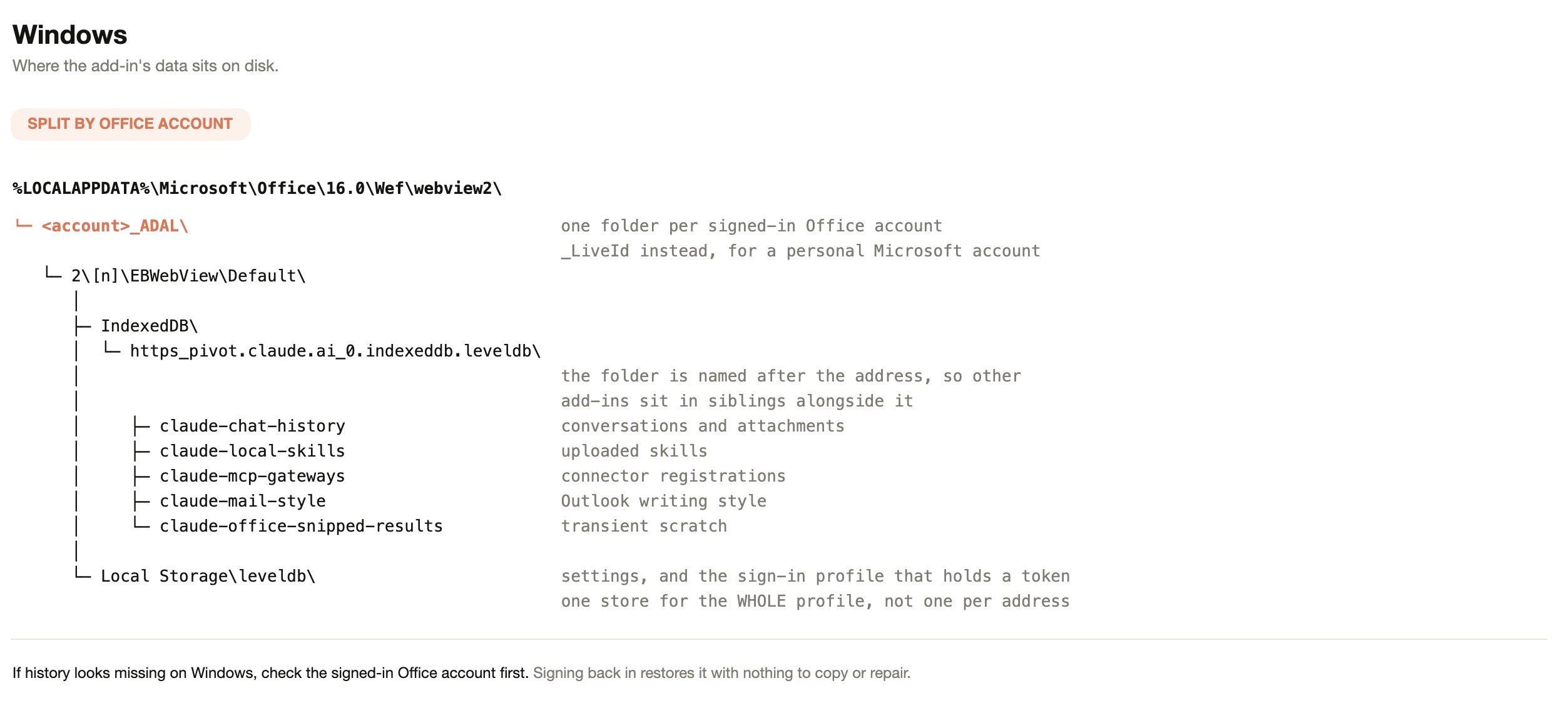
Where the data sits on macOS
On macOS the store is split by Office app instead. Each app runs in its own sandbox container, so Excel, Word, PowerPoint, and Outlook always keep separate histories, and local storage sits inside the folder for a single address.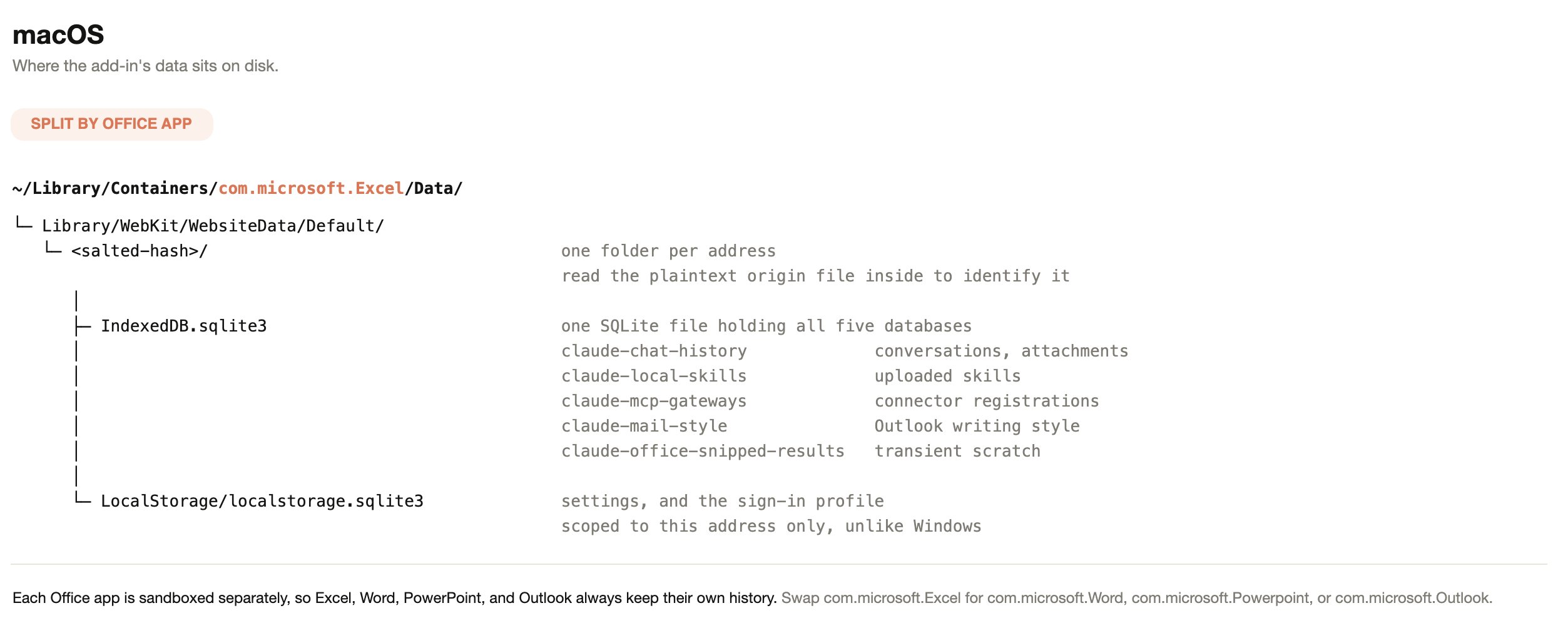
What chat history is keyed to
Sharing a store is not the same as sharing a history list. Each conversation is stored against a user identity, an organization, and the Office app it was created in. The list shows only the conversations that match all three for the session in use. When users sign in with a Claude account, that account is the identity. That includes deployments managed from the Enterprise Admin Console. In other third-party platform deployments there is no Claude account, so the identity comes from the Microsoft Entra ID sign-in already present in Office, as a one-way hash of the directory object ID. The history key holds nothing about the user in readable form. The hash is the same for that user on every device, and usage events include it, as described in What leaves the device. Office builds without support for nested app authentication cannot supply the Entra ID sign-in the add-in reads. On those builds Claude for M365 falls back to a per-installation identifier. Conversations still persist on that device; they are tied to the installation rather than to the directory account. The table below gives the result for each case.
Changing connection mode is an identity change, and the history list follows
the identity. It deletes nothing in Excel, PowerPoint, or Word. Outlook
conversations can be deleted, as described in
Outlook data deleted when a sign-in ends.
One store derives identity differently from chat history. The Outlook writing
style guide has no per-installation fallback. Where there is neither a Claude
account sign-in nor an Entra ID identity that Office can read, the add-in has no
per-user key to mark a style guide with. There it does not learn a writing style
from sent mail, does not offer the “Learn my writing style” button, and does not
send a style guide an earlier version built. Text the user types into the
Writing style field still works.
Data retention
The table below shows how long Claude for M365 keeps each kind of local data. Users can also delete their saved conversations at any time, as described after the table.
Users clear their own conversations from the add-in’s settings. Under “Chat
history”, “Delete all” removes every saved conversation for that user in that
Office app and starts a new chat. In Claude for Outlook, “Delete all” also
deletes what Claude has learned about the user’s writing, as described next.
In Claude for Outlook, users can also delete what Claude has learned about their
writing. Under “Writing style” in the add-in’s settings, “Delete what Claude has
learned about my writing” does the following on that device:
- Deletes the user’s writing style guide, scratchpad, saved edits to drafts, and
draft preferences from
claude-mail-style. - Empties the Writing style field, including text the user typed there.
- Removes from the Instructions field the draft preferences summary, unless its marker lines or the summary’s opening words have been edited, or a line has been added between them, and the writing-style note that versions from April 13 to 17, 2026 added, with anything else between that note’s marker lines.
- Stops a read of sent mail that is in progress, or keeps it from saving anything.
- Starts a new chat, because the open one holds scratchpad text. A chat that is open in another pane stays open, and can no longer save the scratchpad if it had read it.
Outlook data deleted when a sign-in ends
At a sign-out or an account switch, the add-in deletes Claude for Outlook data from the storage that it is using. Deleted data cannot be recovered, because no server keeps a copy to restore it from. The add-in deletes the following:- Saved Outlook conversations and their attachments.
- The writing style guide, scratchpad, saved edits to drafts, and draft
preferences in
claude-mail-style. - The text in the Writing style field, and the text that Claude added to the Outlook Instructions field.
- Everything in
claude-office-snipped-results.
The Writing style and Instructions fields and
claude-office-snipped-results
are shared by all users of the storage, so a deletion can change them for the
signed-in user too.
A deletion that is interrupted is tried again when a task pane next opens, up
to five times. An account switch is noticed only if the previous account was
signed in on a version of the add-in that has this behavior.
If a Claude account sign-in is revoked, expires, or ends on a network failure,
nothing is deleted until one of the two events in the table happens. On a third-party platform connection, only signing out deletes this data, unless the organization manages the add-in from the Enterprise Admin Console. Both events apply to its members.
In Claude for Government, only signing out deletes this data.
What leaves the device
The table below covers each category and its destination, so you can scope a review to the paths that carry content off the endpoint.
When you
manage the add-in from the Enterprise Admin Console,
members sign in with a Claude account. Feature-flag requests, usage events, and
the session records that Sentry keeps, which count sessions and crashes, then
carry the identifiers described for a Claude account sign-in. The identifiers
on these members’ model requests include no account ID and no email address.
Once a member has connected to your provider, error reports follow the row for
third-party platform deployments. Before that, they follow the row for a Claude
account sign-in. Files that these members attach are not uploaded to Anthropic,
and dictation is not available to them. Your organization’s setting that turns
off third-party analytics does not apply to these members.
Until September 23, 2026, Anthropic’s server sent usage events to Segment, a
third-party analytics service. These included the text of rating comments and
any job role a user typed during onboarding or in a later survey.
With a Claude account sign-in, the add-in stops sending usage events and error
reports for an organization whose Claude settings turn off third-party
analytics. Usage events go to Anthropic rather than to a third party, and the
setting still stops them. The add-in applies the setting once it has loaded the
organization’s settings, so events from before that point, such as those during
sign-in, can still be sent.
The setting does not stop the following:
- The session records that Sentry keeps, which count sessions and crashes. They can include the user’s account ID.
- Feature-flag requests, and the feature variants the add-in sends directly to Anthropic.
- The identifiers on model requests.
- The traces, logs, and metrics sent to Anthropic.
Chat history and skills missing after a Microsoft 365 update on Windows
After the September and October 2026 Microsoft 365 updates for Windows, Version 2608 and 2609, Office can open the Claude add-in on a new, empty storage folder. The add-in then shows its first-run screens and no longer lists earlier chat history or uploaded skills. Nothing is deleted: the earlier data stays on the device in the folder Office used before, but the add-in can’t reach it and support can’t restore it into the add-in. Anthropic is working with Microsoft on this behavior. In the meantime, these are the best options:- Don’t clear the Office add-in cache. Clearing it deletes the earlier data.
- Save uploaded skills you rely on to your Claude account: in the Skills menu, hover over a skill you uploaded and click the cloud icon, Save to claude.ai. Keep any conversation you need with ⋮ > Download Transcript.
- Ask your IT team to restore the earlier store with the steps below.
Restore the earlier store on Windows
These steps are for IT administrators, run on the affected PC in a PowerShell session signed in as the user. They copy rather than move and delete nothing, so each one can be undone. The add-in reads one store at a time, so while the earlier store is in place, chats created since the update don’t appear.1
Back up and list the stores
Close every Office app, including Outlook, and run the export script from
Export a user’s data before a device is rebuilt
with an output folder outside the Office folder. Then list every Claude
store under The earlier store is the one last written just before the history stopped
appearing.
%LOCALAPPDATA%\Microsoft\Office\16.0\Wef\webview2 with its
size and most recent write:2
Find the folder Office uses now
Open only the affected Office app and the Claude pane, send a test
message, and with the pane still open run:The
--user-data-dir value in the output is the folder in use. Its store
is the Default\IndexedDB\https_pivot.claude.ai_0.indexeddb.leveldb
folder inside it, with attachments in the matching
https_pivot.claude.ai_0.indexeddb.blob folder.3
Swap in the earlier store
Close every Office app again. In that
Default\IndexedDB folder, rename
the current .leveldb and .blob folders by adding .bak to each name,
then copy the earlier store’s .leveldb and .blob folders in under their
original names. Open the Office app and the Claude pane: the earlier chats
and skills appear. Have the user save skills to claude.ai and download the
transcripts they need right away, because Office can change the folder
again after a later update. To undo, close every Office app, delete the
copied folders, and remove .bak from the renamed ones.Export a user’s data before a device is rebuilt
Theclaude-for-msft-365-install plugin includes read-only export scripts for
macOS and Windows. They read Office’s storage and write only to the folder you
name, and running them with no arguments reports what was found without copying
anything. See
Deploy the add-in for your organization
for installation, then run /claude-for-msft-365-install:export-data.
Export before any of the following:
- A device is rebuilt, reimaged, or handed to another person.
- Anyone clears the Office add-in cache on Windows. The storage sits inside the
same
Weffolder as the manifest cache, so deleting that folder destroys chat history along with the manifest. - Roaming-profile or FSLogix cleanup runs against the user’s profile.
- A browser policy such as
ClearBrowsingDataOnExitis applied to the device.