Copy your conversations, projects, and files from Claude for Government Web into Claude Desktop, or move your Claude Desktop data to another computer.
Who this is for: Anyone who used Claude for Government Web (the web app) and now uses Claude Desktop connected to Claude for Government, and anyone moving Claude Desktop to another computer.
The import copies your conversations, their attached files, and the projects you created, with their instructions and the files you added to them.
Before you begin
Video: Signing in for the first time (1 min 26 s). Narrated with an AI-generated voice, with on-screen captions.
Transcript
Claude Desktop is installed and connected for you by your agency. You sign in with your work account. No separate Claude account is needed.Open Claude. The sign-in screen says the app runs through your organization. Choose Sign in with your organization.Claude shows a pairing code, and opens your browser. The code works for a few minutes. If it expires, just start again.In the browser, enter your work email and select Continue. Then sign in the way you always do at your agency.Next comes the system use notification. Read it, and acknowledge it.Compare the code with the one in Claude, then select Approve. The page confirms you’re signed in. Go back to Claude.You arrive on the home screen. Projects and your recent conversations are in the sidebar.You type your message in the message box. The model picker is at the bottom right. Your seat decides which models it lists, so a colleague may see others.Code is for software work, in a folder you choose on your computer.If you can sign in but the model picker is empty, ask your organization’s owner to check your seat tier and its models.
Claude Desktop is up to date. Update Claude Desktop to 4.29.0 or later and restart it, or ask your IT administrator to update it.
You had an account on the web app. Its work email address must match the one on your account in Claude Desktop.
For administrators: Anthropic enables the import for each organization. If a member’s Import & export page says import is not enabled and their app is up to date, contact your Anthropic representative. The import needs Claude Desktop to download a component, so on a network that blocks downloads.claude.ai, deploy the offline installer described under Installer and packaging in the Windows fleet checklist.
Run the import
Video: Bringing your chats and projects over from Claude for Government Web (2 min 9 s). Narrated with an AI-generated voice, with on-screen captions.
Transcript
If you used Claude for Government Web, you can copy your chats and projects into Claude Desktop. First, make sure Claude Desktop is up to date. You need an account on the web app, and it must use the same work email as your account in Claude Desktop.In Claude Desktop, open Settings from the account menu at the bottom of the sidebar, then Import and export, and select Import. Run it when you are ready.Select Sign in to Claude for Government Web, then Sign in. Claude shows a one-time code and opens a tab in your browser.In that tab, enter the code from Claude and approve the request. If you are asked to sign in, use your work account. Then go back to Claude.Check that the email shown is yours, then select Fetch export, and wait while Claude downloads your chats and projects.Select Continue, review what will be added, then select Import. When it finishes, the dialog reports what came over. Select Done.Your conversations appear in the sidebar, and your projects under Projects. Projects other people shared with you do not come over.Imported chats open in Chat. The first time you continue one, Claude asks whether to resume the imported session. Select Trust and resume to continue the conversation.A project that had instructions shows a notice. Claude won’t follow imported instructions until you accept them: select Review instructions, check them, and save, or choose Use as is.The import only copies. You can run it again, and chats already imported are skipped. If the Import and export page says import isn’t enabled, update Claude Desktop. If it still says so, ask your administrator.
You start the import yourself from Settings, whenever you are ready. If Claude Desktop’s home screen shows a Pick up where you left off in Claude for Government Web banner, its Start import button takes you to the Import & export page in Settings. If you click Skip for now or close the banner, it can come back a few days later, until you run the import or have skipped it a few times. Claude Desktop versions earlier than 2.16120.0 hide the banner permanently after one skip.
1
Open the import dialog
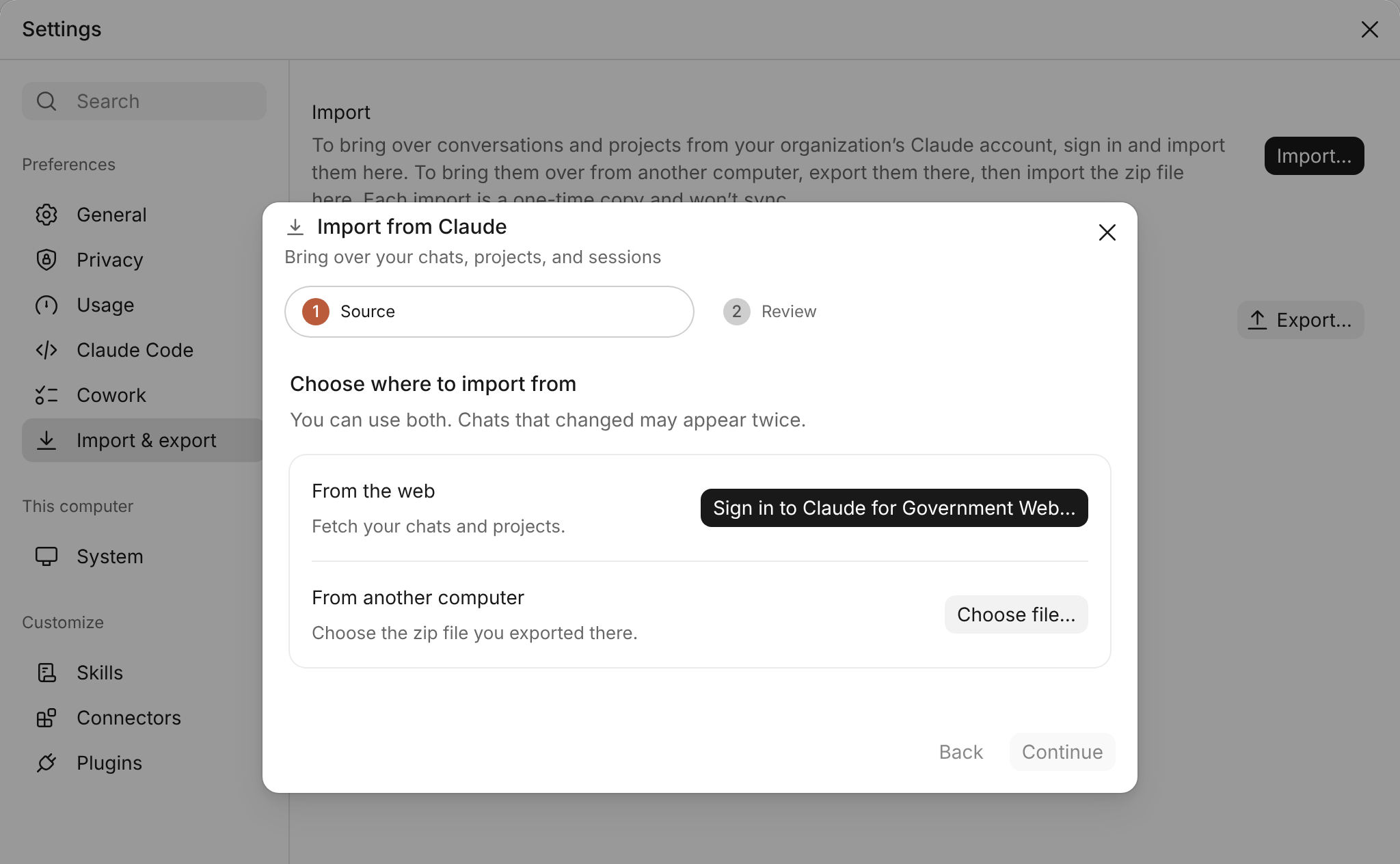
In Claude Desktop, open Settings, then the Import & export page, and click Import….In organizations that also allow export and import between computers, Claude Desktop 6.6395.0 or later opens the dialog on Choose where to import from. The web app import is the From the web row. The From another computer row is for a zip file.
The first step of the import dialog, in an organization that has both the web app import and the zip file import.
2
Sign in and enter the code
Click Sign in to Claude for Government Web…, and in the dialog that opens, click Sign in. Claude Desktop shows a one-time code, which expires after a few minutes, and opens a tab in your default browser. In that tab, enter the code and approve the request. If you are asked to sign in, use your work account. Then return to Claude Desktop.
3
Fetch your export
Check that the email address shown is your work address, then click Fetch export and wait for the download to finish.
4
Start the import
Click Continue, review what will be added, then click Import. The import can take a few minutes.
5
Check the results
When the dialog reports what it brought over, click Done. Imported conversations appear in the sidebar, and imported projects appear under Projects.
Continue an imported conversation
The first time you send a message in an imported conversation, Claude Desktop shows a Resume imported session? prompt. Click Trust and resume to continue.
Review imported project instructions
If a project had instructions, open it after the import. Its page shows a notice that the instructions came from an import, and Claude doesn’t follow them until you accept them. Click Review instructions to edit and save them, or Use as is to accept them unchanged. They then appear under Instructions on the project’s page. Claude Desktop versions earlier than 1.25927.0 follow imported instructions straight away.
Remove an import
To remove an import, open Settings, then the Import & export page. Under Import history, click Remove next to the import, or Remove all to remove every import listed. Before you confirm, the dialog shows how many conversations and projects it will delete. The files of imported projects stay on your computer, by default in Claude/Projects in your home folder, until you delete them yourself.Removing a zip file import leaves its other data on your computer, such as memory and skills.If you ran both the web app import and a zip file import, a conversation that’s in both is deleted when you remove the older of the two imports, the lower one under Import history. To get it back, run the other import again. If the other import is the web app import, your web app projects then appear twice.
Removing an import also deletes any imported conversation you have continued since, including the new messages, and you cannot undo it.
Move your data to another computer
You can export your Claude Desktop data to a zip file and import the file on another computer. Check these requirements first:
Your organization allows the move. In Claude Desktop, Settings > Import & export shows an Export… button.
Both computers run Claude Desktop 6.6395.0 or later, on the same operating system (macOS, Windows, or Linux).
You’re signed in to the same tenant on both computers. A tenant is your agency’s Claude for Government deployment.
If your organization doesn’t allow the move, ask your IT administrator to copy your data before you use Claude on the new computer, because the copy replaces any Claude Desktop data already there.
The zip file holds the Claude Desktop data of the Windows, macOS, or Linux account you’re logged in to, and only what’s stored on the computer you export from.
Shared computer accounts: people who log in to a computer with the same account share one history, so the zip file holds their data too
Your tenant: the zip file carries your tenant’s ID as a label, and the import checks that it matches the tenant you’re signed in to
What the zip file includes
The zip file isn’t encrypted. Anyone who has it can read it, including any passwords or keys written in your data, such as in a chat, a file, or a local MCP server’s arguments.
Data
What goes in the zip file
Your step on the new computer
Chats and Cowork tasks
The ones in the date range you select, archived tasks included, with their attached files, output files, and what Claude read from files and connectors
The import adds to the data on the new computer and replaces nothing. A skill, plugin, local MCP server, or memory note that already has the same name there stays as it is.
When Claude Desktop asks whether the file is your own export, click Import as my own. Import sessions only is for a file that someone else made. Come back to this page if a dialog asks about projects.
If the web app import already brought some of the zip file’s projects to this computer, another dialog lists them after you click Import as my own. Click Merge into existing to have each project once. Your answer covers every project listed. Where a file or the instructions differ, the zip file’s version goes in a From the imported file folder inside the project’s folder.
If a project that you created yourself on this computer has the same name as one in the zip file, the Duplicates step lists it after the import finishes. Click Keep separate to keep the imported project whole. In this step, Merge into existing moves the imported project’s chats and memory into yours. It leaves the files in a folder outside your project, and drops the instructions if your project has its own.
You can run the web app import on the new computer as well. If you clicked Import as my own, a conversation that’s in both imports appears once. If you continued it on the old computer, it can appear twice: once as it was in the web app, and once with your later messages.
Troubleshooting
What you see
Likely cause
What to do
Your export exceeds the import size limit
You have more data than the import can bring over
Update Claude Desktop to 4.29.0 or later, then run the import again. If you still see this message, contact your administrator, who can ask Anthropic for help
The account does not match your organization
You signed in with a different account or organization
Click Sign in in the dialog again and use your work account in the browser tab
Settings has no Import & export page, or the page says import isn’t enabled for this deployment
Your app is out of date, or Anthropic has not yet enabled the import for your organization
Update Claude Desktop to the latest version. If the page still says import isn’t enabled, contact your administrator, who can ask Anthropic to enable it
The import dialog has no Sign in to Claude for Government Web… button
Anthropic hasn’t enabled the web app import for your organization
Contact your administrator, who can ask Anthropic to enable it
The Import & export page has no Export… button
Your app is out of date, or your organization hasn’t turned on export and import
Update Claude Desktop to the latest version. If the button is still missing, ask your administrator to turn on Export and import between computers
That export was made in another organization
The zip file wasn’t exported in the tenant you’re signed in to
Choose a zip file that was exported in your tenant
Not allowed by your organization
Your organization doesn’t allow that kind of data
If you need that data, ask your administrator to allow it. Then restart Claude Desktop, import the same zip file again, and click Import as my own
Your local MCP servers are missing, and the import’s last screen doesn’t mention them
Your organization didn’t allow them when you exported
After your administrator allows them, restart Claude Desktop on both computers, export again, and import the new zip file
Cowork tasks from the zip file are missing from the sidebar
You archived them on the old computer, so they arrive archived
Where your Cowork tasks are listed, hover over Recents in the sidebar and click the filter icon, Filter and group recents. Then select Status > Archived
Code sessions from the zip file are missing from the sidebar
You archived them on the old computer, so they arrive archived
In the Code tab, hover over the heading above the session list and click the Group and sort icon. Then click View all, then Archived
An artifact in a chat or task from the zip file opens an empty side panel
In that chat or task, ask Claude to make the artifact again
Your sessions arrived from the zip file, but other data such as memory, skills, and project files didn’t
You chose Import sessions only when Claude Desktop asked whether the file is your own export
If you still have the zip file, remove the import named Claude Desktop export, which also deletes anything that you added to the imported sessions since. Then import the same zip file again and click Import as my own. If you don’t remove the import first, the other data still arrives, but conversations or projects from the web app import can appear twice
For other problems with a zip file, see Problems when you move to another device. For anything else, try the import again. If it keeps failing, contact your administrator.
Things to know
You can run the web app import again, on this computer or another. Conversations already there are skipped. For conversations that came in a zip file, see Export and import the zip file. The import brings only what was in the web app, not your work since then in Claude Desktop.
Conversations can arrive as Cowork tasks. If your organization’s settings don’t give you Chat when you run the import, your conversations are imported as Cowork tasks instead. If Cowork is also off, they don’t appear in the sidebar, so ask your administrator for Cowork. Claude Desktop versions earlier than 1.28929.0 always import them as Cowork tasks.
You can’t import projects other people shared with you. You also can’t import anything from claude.ai or other AI assistants.
{"docsConfig":{"theme":"mint","$schema":"https://mintlify.com/docs.json","name":"Claude.ai Documentation","colors":{"primary":"#0E0E0E","light":"#D4A27F","dark":"#0E0E0E"},"logo":{"light":"https://mintcdn.com/claude-ai/1fyDNLAICe3KG6rB/logo/light.svg?fit=max\u0026auto=format\u0026n=1fyDNLAICe3KG6rB\u0026q=85\u0026s=e870c19cb781d8a7c7b7d19de53b0a10","dark":"https://mintcdn.com/claude-ai/1fyDNLAICe3KG6rB/logo/dark.svg?fit=max\u0026auto=format\u0026n=1fyDNLAICe3KG6rB\u0026q=85\u0026s=80cc0b06d8fd9aeefec8acb226de6866"},"favicon":"https://mintcdn.com/claude-ai/N9YeVEPVxANlc2We/favicon.ico?fit=max\u0026auto=format\u0026n=N9YeVEPVxANlc2We\u0026q=85\u0026s=a22e48fa0189917f9be516d4a555898c","background":{"color":{"light":"#FDFDF7","dark":"#09090B"}},"navbar":{"links":[{"href":"https://support.anthropic.com","label":"Support"}],"primary":{"type":"button","label":"Go to Claude","href":"https://claude.ai"}},"footer":{"socials":{"x":"https://x.com/AnthropicAI","linkedin":"https://www.linkedin.com/company/anthropicresearch"},"links":[{"header":"Company","items":[{"label":"Anthropic","href":"https://www.anthropic.com/company"},{"label":"Careers","href":"https://www.anthropic.com/careers"},{"label":"Economic Futures","href":"https://www.anthropic.com/economic-futures"},{"label":"Research","href":"https://www.anthropic.com/research"},{"label":"News","href":"https://www.anthropic.com/news"},{"label":"Trust center","href":"https://trust.anthropic.com/"},{"label":"Transparency","href":"https://www.anthropic.com/transparency"}]},{"header":"Help and security","items":[{"label":"Availability","href":"https://www.anthropic.com/supported-countries"},{"label":"Status","href":"https://status.anthropic.com/"},{"label":"Support center","href":"https://support.claude.com/"}]},{"header":"Learn","items":[{"label":"Courses","href":"https://academy.claude.com/"},{"label":"MCP connectors","href":"https://claude.com/partners/mcp"},{"label":"Customer stories","href":"https://www.claude.com/customers"},{"label":"Engineering blog","href":"https://www.anthropic.com/engineering"},{"label":"Events","href":"https://www.anthropic.com/events"},{"label":"Powered by Claude","href":"https://claude.com/partners/powered-by-claude"},{"label":"Service partners","href":"https://claude.com/partners/services"},{"label":"Startups program","href":"https://claude.com/programs/startups"}]},{"header":"Terms and policies","items":[{"label":"Privacy policy","href":"https://www.anthropic.com/legal/privacy"},{"label":"Disclosure policy","href":"https://www.anthropic.com/responsible-disclosure-policy"},{"label":"Usage policy","href":"https://www.anthropic.com/legal/aup"},{"label":"Commercial terms","href":"https://www.anthropic.com/legal/commercial-terms"},{"label":"Consumer terms","href":"https://www.anthropic.com/legal/consumer-terms"}]}]},"seo":{"metatags":{"canonical":"https://claude.com/docs"}},"fonts":{"family":"Anthropic Sans"},"contextual":{"options":["copy","view","claude"],"display":"header"},"styling":{"latex":false},"navigation":{"pages":[]}},"deployment":{"deploymentMetadataValue":{"subdomain":"claude-ai","hasAudioNarration":false,"actualSubdomain":"claude-ai","customDomains":["claude.com"],"gitSource":{"type":"github","owner":"anthropics","repo":"claude-ai-docs","deployBranch":"main","contentDirectory":"","isPrivate":true,"mountPath":"","label":""},"feedback":{"thumbs":true},"entitlements":{"AI_CHAT":{"status":"ENABLED"},"REMOVE_BRANDING":{"status":"ENABLED"},"CONTEXTUAL_FEEDBACK":{"status":"ENABLED"},"CODE_SNIPPET_FEEDBACK":{"status":"ENABLED"},"WEB_MCP":{"status":"ENABLED"},"NARRATION":{"status":"ENABLED"}},"buildId":"6aff382f79c49b4418758d97","clientVersion":"0.0.4205","searchFilterCounts":[{"language":"default","tag":"Claude Tag","count":75},{"language":"default","tag":"For administrators","count":60},{"language":"default","tag":"Claude for Government","count":47},{"language":"default","tag":"Claude on third-party platforms","count":46},{"language":"default","tag":"Claude Science","count":41},{"language":"default","tag":"Build for Claude","count":36},{"language":"default","tag":"Set up Claude Tag","count":30},{"language":"default","tag":"Use Claude Science","count":23},{"language":"default","tag":"Customize Claude","count":22},{"language":"default","tag":"Connection guides","count":18}]},"assistantConfig":{"enableAskAiButton":false,"enableStarterQuestions":false,"enableAskAiSearchBar":true},"basePath":"/docs","hasChatPermissions":true,"hasWebMcpPermissions":true,"toggles":[{"name":"kill-isr","enabled":true,"variant":{"name":"disabled","enabled":false,"feature_enabled":true},"impressionData":false},{"name":"custom-rbac-roles","enabled":true,"variant":{"name":"disabled","enabled":false,"feature_enabled":true},"impressionData":false},{"name":"agent-mintlify-slack","enabled":true,"variant":{"name":"disabled","enabled":false,"feature_enabled":true},"impressionData":false},{"name":"agent-integrations-settings","enabled":true,"variant":{"name":"disabled","enabled":false,"feature_enabled":true},"impressionData":false},{"name":"rbac-expansion","enabled":true,"variant":{"name":"disabled","enabled":false,"feature_enabled":true},"impressionData":false},{"name":"automations-pr-grouping","enabled":true,"variant":{"name":"disabled","enabled":false,"feature_enabled":true},"impressionData":false},{"name":"custom-prefix","enabled":true,"variant":{"name":"disabled","enabled":false,"feature_enabled":true},"impressionData":false},{"name":"analytics-v7","enabled":true,"variant":{"name":"disabled","enabled":false,"feature_enabled":true},"impressionData":false},{"name":"user-flows-analytics","enabled":true,"variant":{"name":"disabled","enabled":false,"feature_enabled":true},"impressionData":false},{"name":"no-publish-flow","enabled":true,"variant":{"name":"disabled","enabled":false,"feature_enabled":true},"impressionData":false},{"name":"workos-onboarding","enabled":true,"variant":{"name":"disabled","enabled":false,"feature_enabled":true},"impressionData":false},{"name":"snapshot-serving-live","enabled":true,"variant":{"name":"disabled","enabled":false,"feature_enabled":true},"impressionData":false},{"name":"stripTemperatureMiddleware","enabled":true,"variant":{"name":"disabled","enabled":false,"feature_enabled":true},"impressionData":false},{"name":"support-platform-pylon-zendesk","enabled":true,"variant":{"name":"disabled","enabled":false,"feature_enabled":true},"impressionData":false},{"name":"snapshot-serving","enabled":true,"variant":{"name":"disabled","enabled":false,"feature_enabled":true},"impressionData":false},{"name":"instant-rollback","enabled":true,"variant":{"name":"disabled","enabled":false,"feature_enabled":true},"impressionData":false},{"name":"granular-notifications-server","enabled":true,"variant":{"name":"disabled","enabled":false,"feature_enabled":true},"impressionData":false},{"name":"granular-notifications","enabled":true,"variant":{"name":"disabled","enabled":false,"feature_enabled":true},"impressionData":false},{"name":"automations-fable","enabled":true,"variant":{"name":"disabled","enabled":false,"feature_enabled":true},"impressionData":false},{"name":"fixed-ai-action-pricing","enabled":true,"variant":{"name":"disabled","enabled":false,"feature_enabled":true},"impressionData":false},{"name":"automation-resolve-merge-conflict","enabled":true,"variant":{"name":"disabled","enabled":false,"feature_enabled":true},"impressionData":false},{"name":"scoped-publishing","enabled":true,"variant":{"name":"disabled","enabled":false,"feature_enabled":true},"impressionData":false},{"name":"mintql","enabled":true,"variant":{"name":"disabled","enabled":false,"feature_enabled":true},"impressionData":false},{"name":"page-level-analytics","enabled":true,"variant":{"name":"disabled","enabled":false,"feature_enabled":true},"impressionData":false},{"name":"editor-version-history-v2","enabled":true,"variant":{"name":"disabled","enabled":false,"feature_enabled":true},"impressionData":false},{"name":"billing-page-v2","enabled":true,"variant":{"name":"disabled","enabled":false,"feature_enabled":true},"impressionData":false},{"name":"full-page-search","enabled":true,"variant":{"name":"disabled","enabled":false,"feature_enabled":true},"impressionData":false},{"name":"workspace-projects","enabled":true,"variant":{"name":"disabled","enabled":false,"feature_enabled":true},"impressionData":false},{"name":"assistant-v5","enabled":true,"variant":{"name":"disabled","enabled":false,"feature_enabled":true},"impressionData":false},{"name":"fork-pr-previews","enabled":true,"variant":{"name":"disabled","enabled":false,"feature_enabled":true},"impressionData":false},{"name":"revalidation-jwt","enabled":true,"variant":{"name":"disabled","enabled":false,"feature_enabled":true},"impressionData":false},{"name":"workos-sso-scim","enabled":true,"variant":{"name":"disabled","enabled":false,"feature_enabled":true},"impressionData":false},{"name":"hobby-abuse-scan","enabled":true,"variant":{"name":"disabled","enabled":false,"feature_enabled":true},"impressionData":false},{"name":"dashboard-inbox","enabled":true,"variant":{"name":"disabled","enabled":false,"feature_enabled":true},"impressionData":false},{"name":"workos-signup","enabled":true,"variant":{"name":"disabled","enabled":false,"feature_enabled":true},"impressionData":false},{"name":"turbopuffer-dual-write","enabled":true,"variant":{"name":"disabled","enabled":false,"feature_enabled":true},"impressionData":false},{"name":"workos-enabled","enabled":true,"variant":{"name":"disabled","enabled":false,"feature_enabled":true},"impressionData":false},{"name":"approve-review-flow","enabled":true,"variant":{"name":"disabled","enabled":false,"feature_enabled":true},"impressionData":false},{"name":"editor-metadata","enabled":true,"variant":{"name":"disabled","enabled":false,"feature_enabled":true},"impressionData":false},{"name":"sso-setup-deadline-banner","enabled":true,"variant":{"name":"disabled","enabled":false,"feature_enabled":true},"impressionData":false},{"name":"turbopuffer-serve","enabled":true,"variant":{"name":"disabled","enabled":false,"feature_enabled":true},"impressionData":false},{"name":"live-agents","enabled":true,"variant":{"name":"disabled","enabled":false,"feature_enabled":true},"impressionData":false},{"name":"starter-pricing","enabled":true,"variant":{"name":"control","enabled":true,"payload":{"type":"string","value":"control"},"feature_enabled":true},"impressionData":false},{"name":"llms-txt-v2","enabled":true,"variant":{"name":"disabled","enabled":false,"feature_enabled":true},"impressionData":false},{"name":"wildcard-email-auth","enabled":true,"variant":{"name":"disabled","enabled":false,"feature_enabled":true},"impressionData":false}],"googleFontsInlined":false},"customCss":[{"filePath":"style.css","href":"/docs/_mintlify/custom/claude-ai/f864c4801ebb83ca/style.css"}],"page":{"pagePath":"government/desktop/import","slug":"/government/desktop/import","pageMetadata":{"title":"Import your data from Claude for Government Web","sidebarTitle":"Import your data","description":"Copy your conversations, projects, and files from Claude for Government Web into Claude Desktop, or move your Claude Desktop data to another computer.","href":"/government/desktop/import"},"description":{"compiledSource":"\"use strict\";\nconst {jsx: _jsx} = arguments[0];\nconst {useMDXComponents: _provideComponents} = arguments[0];\nfunction _createMdxContent(props) {\n const _components = {\n p: \"p\",\n ..._provideComponents(),\n ...props.components\n };\n return _jsx(_components.p, {\n children: \"Copy your conversations, projects, and files from Claude for Government Web into Claude Desktop, or move your Claude Desktop data to another computer.\"\n });\n}\nfunction MDXContent(props = {}) {\n const {wrapper: MDXLayout} = {\n ..._provideComponents(),\n ...props.components\n };\n return MDXLayout ? _jsx(MDXLayout, {\n ...props,\n children: _jsx(_createMdxContent, {\n ...props\n })\n }) : _createMdxContent(props);\n}\nreturn {\n default: MDXContent\n};\n","frontmatter":{},"scope":{}},"pageType":"default","mdx":{"mdxSource":{"compiledSource":"\"use strict\";const{Fragment:_Fragment,jsx:_jsx,jsxs:_jsxs}=arguments[0];const{useMDXComponents:_provideComponents}=arguments[0];function _createMdxContent(props){const _components={a:`a`,blockquote:`blockquote`,code:`code`,li:`li`,ol:`ol`,p:`p`,strong:`strong`,tbody:`tbody`,td:`td`,th:`th`,thead:`thead`,tr:`tr`,ul:`ul`,..._provideComponents(),...props.components},{Accordion,Frame,Heading,OptimizedImage,Step,Steps,Table,Warning}=_components;if(!Accordion)_missingMdxReference(`Accordion`,true);if(!Frame)_missingMdxReference(`Frame`,true);if(!Heading)_missingMdxReference(`Heading`,true);if(!OptimizedImage)_missingMdxReference(`OptimizedImage`,true);if(!Step)_missingMdxReference(`Step`,true);if(!Steps)_missingMdxReference(`Steps`,true);if(!Table)_missingMdxReference(`Table`,true);if(!Warning)_missingMdxReference(`Warning`,true);return _jsxs(_Fragment,{children:[_jsxs(_components.blockquote,{children:[`\n`,_jsxs(_components.p,{children:[_jsx(_components.strong,{children:`Who this is for:`}),` Anyone who used Claude for Government Web (the web app) and now uses Claude Desktop connected to Claude for Government, and anyone `,_jsx(_components.a,{href:`#move-your-data-to-another-computer`,children:`moving Claude Desktop to another computer`}),`.`]}),`\n`]}),`\n`,_jsx(_components.p,{children:`The import copies your conversations, their attached files, and the projects you created, with their instructions and the files you added to them.`}),`\n`,_jsx(Heading,{level:`2`,id:`before-you-begin`,children:`Before you begin`}),`\n`,_jsx(Frame,{caption:`Video: Signing in for the first time (1 min 26 s). Narrated with an AI-generated voice, with on-screen captions.`,children:_jsx(`video`,{controls:true,preload:`metadata`,playsInline:true,className:`mint-w-full mint-aspect-video`,src:`https://mintcdn.com/claude-ai/nMLu5fzo3pFRNLuz/images/government/videos/user-01-signing-in-for-the-first-time-v3.mp4?fit=max\u0026auto=format\u0026n=nMLu5fzo3pFRNLuz\u0026q=85\u0026s=53f074a171b87f7c5f0f8ef71a6e7daa`,\"aria-label\":`Video walkthrough: Signing in for the first time`,\"data-path\":`images/government/videos/user-01-signing-in-for-the-first-time-v3.mp4`})}),`\n`,_jsxs(Accordion,{title:`Transcript`,id:`transcript`,children:[_jsx(_components.p,{children:`Claude Desktop is installed and connected for you by your agency. You sign in with your work account. No separate Claude account is needed.`}),_jsx(_components.p,{children:`Open Claude. The sign-in screen says the app runs through your organization. Choose Sign in with your organization.`}),_jsx(_components.p,{children:`Claude shows a pairing code, and opens your browser. The code works for a few minutes. If it expires, just start again.`}),_jsx(_components.p,{children:`In the browser, enter your work email and select Continue. Then sign in the way you always do at your agency.`}),_jsx(_components.p,{children:`Next comes the system use notification. Read it, and acknowledge it.`}),_jsx(_components.p,{children:`Compare the code with the one in Claude, then select Approve. The page confirms you’re signed in. Go back to Claude.`}),_jsx(_components.p,{children:`You arrive on the home screen. Projects and your recent conversations are in the sidebar.`}),_jsx(_components.p,{children:`You type your message in the message box. The model picker is at the bottom right. Your seat decides which models it lists, so a colleague may see others.`}),_jsx(_components.p,{children:`Code is for software work, in a folder you choose on your computer.`}),_jsx(_components.p,{children:`If you can sign in but the model picker is empty, ask your organization’s owner to check your seat tier and its models.`})]}),`\n`,_jsxs(_components.ul,{children:[`\n`,_jsxs(_components.li,{children:[_jsx(_components.strong,{children:`Claude Desktop is up to date.`}),` Update Claude Desktop to 4.29.0 or later and restart it, or ask your IT administrator to update it.`]}),`\n`,_jsxs(_components.li,{children:[_jsx(_components.strong,{children:`You had an account on the web app.`}),` Its work email address must match the one on your account in Claude Desktop.`]}),`\n`]}),`\n`,_jsxs(_components.blockquote,{children:[`\n`,_jsxs(_components.p,{children:[_jsx(_components.strong,{children:`For administrators:`}),` Anthropic enables the import for each organization. If a member’s `,_jsx(_components.strong,{children:`Import \u0026 export`}),` page says import is not enabled and their app is up to date, contact your Anthropic representative. The import needs Claude Desktop to download a component, so on a network that blocks `,_jsx(_components.code,{children:`downloads.claude.ai`}),`, deploy the offline installer described under `,_jsx(_components.a,{href:`/government/deploy-desktop/windows-checklist#installer-and-packaging`,children:`Installer and packaging`}),` in the Windows fleet checklist.`]}),`\n`]}),`\n`,_jsx(Heading,{level:`2`,id:`run-the-import`,children:`Run the import`}),`\n`,_jsx(Frame,{caption:`Video: Bringing your chats and projects over from Claude for Government Web (2 min 9 s). Narrated with an AI-generated voice, with on-screen captions.`,children:_jsx(`video`,{controls:true,preload:`metadata`,playsInline:true,className:`mint-w-full mint-aspect-video`,src:`https://mintcdn.com/claude-ai/G8LW177rlshvdwBY/images/government/videos/user-02-bringing-your-chats-and-projects-over-v4.mp4?fit=max\u0026auto=format\u0026n=G8LW177rlshvdwBY\u0026q=85\u0026s=6e910cb7502932bbc23e9a0e43a5ae91`,\"aria-label\":`Video walkthrough: Bringing your chats and projects over from Claude for Government Web`,\"data-path\":`images/government/videos/user-02-bringing-your-chats-and-projects-over-v4.mp4`})}),`\n`,_jsxs(Accordion,{title:`Transcript`,id:`transcript-1`,children:[_jsx(_components.p,{children:`If you used Claude for Government Web, you can copy your chats and projects into Claude Desktop. First, make sure Claude Desktop is up to date. You need an account on the web app, and it must use the same work email as your account in Claude Desktop.`}),_jsx(_components.p,{children:`In Claude Desktop, open Settings from the account menu at the bottom of the sidebar, then Import and export, and select Import. Run it when you are ready.`}),_jsx(_components.p,{children:`Select Sign in to Claude for Government Web, then Sign in. Claude shows a one-time code and opens a tab in your browser.`}),_jsx(_components.p,{children:`In that tab, enter the code from Claude and approve the request. If you are asked to sign in, use your work account. Then go back to Claude.`}),_jsx(_components.p,{children:`Check that the email shown is yours, then select Fetch export, and wait while Claude downloads your chats and projects.`}),_jsx(_components.p,{children:`Select Continue, review what will be added, then select Import. When it finishes, the dialog reports what came over. Select Done.`}),_jsx(_components.p,{children:`Your conversations appear in the sidebar, and your projects under Projects. Projects other people shared with you do not come over.`}),_jsx(_components.p,{children:`Imported chats open in Chat. The first time you continue one, Claude asks whether to resume the imported session. Select Trust and resume to continue the conversation.`}),_jsx(_components.p,{children:`A project that had instructions shows a notice. Claude won’t follow imported instructions until you accept them: select Review instructions, check them, and save, or choose Use as is.`}),_jsx(_components.p,{children:`The import only copies. You can run it again, and chats already imported are skipped. If the Import and export page says import isn’t enabled, update Claude Desktop. If it still says so, ask your administrator.`})]}),`\n`,_jsxs(_components.p,{children:[`You start the import yourself from `,_jsx(_components.strong,{children:`Settings`}),`, whenever you are ready. If Claude Desktop’s home screen shows a `,_jsx(_components.strong,{children:`Pick up where you left off in Claude for Government Web`}),` banner, its `,_jsx(_components.strong,{children:`Start import`}),` button takes you to the `,_jsx(_components.strong,{children:`Import \u0026 export`}),` page in `,_jsx(_components.strong,{children:`Settings`}),`. If you click `,_jsx(_components.strong,{children:`Skip for now`}),` or close the banner, it can come back a few days later, until you run the import or have skipped it a few times. Claude Desktop versions earlier than 2.16120.0 hide the banner permanently after one skip.`]}),`\n`,_jsxs(Steps,{children:[_jsxs(Step,{title:`Open the import dialog`,children:[_jsxs(_components.p,{children:[`In Claude Desktop, open `,_jsx(_components.strong,{children:`Settings`}),`, then the `,_jsx(_components.strong,{children:`Import \u0026 export`}),` page, and click `,_jsx(_components.strong,{children:`Import…`}),`.`]}),_jsxs(_components.p,{children:[_jsx(`span`,{id:`choose-where-to-import-from`}),`In organizations that also allow `,_jsx(_components.a,{href:`#move-your-data-to-another-computer`,children:`export and import between computers`}),`, Claude Desktop 6.6395.0 or later opens the dialog on `,_jsx(_components.strong,{children:`Choose where to import from`}),`. The web app import is the `,_jsx(_components.strong,{children:`From the web`}),` row. The `,_jsx(_components.strong,{children:`From another computer`}),` row is for a `,_jsx(_components.a,{href:`#export-and-import-the-zip-file`,children:`zip file`}),`.`]}),_jsx(Frame,{caption:`The first step of the import dialog, in an organization that has both the web app import and the zip file import.`,children:_jsx(OptimizedImage,{src:`https://mintcdn.com/claude-ai/ArGP1lHk5ekvCwKg/images/government/import/import-choose-source.png?fit=max\u0026auto=format\u0026n=ArGP1lHk5ekvCwKg\u0026q=85\u0026s=3f94c4a6321bf01c895cd27d0d8c32d9`,alt:`Claude Desktop settings with Import and export selected and the Import from Claude dialog open on its Source step, headed Choose where to import from. A From the web row has a Sign in to Claude for Government Web button, and a From another computer row has a Choose file button.`,\"data-og-width\":`2048`,width:`2048`,\"data-og-height\":`1264`,height:`1264`,\"data-path\":`images/government/import/import-choose-source.png`,\"data-optimize\":`true`,\"data-opv\":`3`,srcset:`https://mintcdn.com/claude-ai/ArGP1lHk5ekvCwKg/images/government/import/import-choose-source.png?w=280\u0026fit=max\u0026auto=format\u0026n=ArGP1lHk5ekvCwKg\u0026q=85\u0026s=8dcdb6e30d2a6553279de7ef028f7332 280w, https://mintcdn.com/claude-ai/ArGP1lHk5ekvCwKg/images/government/import/import-choose-source.png?w=560\u0026fit=max\u0026auto=format\u0026n=ArGP1lHk5ekvCwKg\u0026q=85\u0026s=7db5768bbe035014d2ddfe9d7c4ee677 560w, https://mintcdn.com/claude-ai/ArGP1lHk5ekvCwKg/images/government/import/import-choose-source.png?w=840\u0026fit=max\u0026auto=format\u0026n=ArGP1lHk5ekvCwKg\u0026q=85\u0026s=8059afc4e33c533dfe61b6e8828ead7c 840w, https://mintcdn.com/claude-ai/ArGP1lHk5ekvCwKg/images/government/import/import-choose-source.png?w=1100\u0026fit=max\u0026auto=format\u0026n=ArGP1lHk5ekvCwKg\u0026q=85\u0026s=76da91de431309bb12aa42bcfd1e35dd 1100w, https://mintcdn.com/claude-ai/ArGP1lHk5ekvCwKg/images/government/import/import-choose-source.png?w=1650\u0026fit=max\u0026auto=format\u0026n=ArGP1lHk5ekvCwKg\u0026q=85\u0026s=4ecaf7a68b2e4f792491813294745773 1650w, https://mintcdn.com/claude-ai/ArGP1lHk5ekvCwKg/images/government/import/import-choose-source.png?w=2500\u0026fit=max\u0026auto=format\u0026n=ArGP1lHk5ekvCwKg\u0026q=85\u0026s=ddd62d49bf40c618f6412cfc9337a6a2 2500w`})})]}),_jsx(Step,{title:`Sign in and enter the code`,children:_jsxs(_components.p,{children:[`Click `,_jsx(_components.strong,{children:`Sign in to Claude for Government Web…`}),`, and in the dialog that opens, click `,_jsx(_components.strong,{children:`Sign in`}),`. Claude Desktop shows a one-time code, which expires after a few minutes, and opens a tab in your default browser. In that tab, enter the code and approve the request. If you are asked to sign in, use your work account. Then return to Claude Desktop.`]})}),_jsx(Step,{title:`Fetch your export`,children:_jsxs(_components.p,{children:[`Check that the email address shown is your work address, then click `,_jsx(_components.strong,{children:`Fetch export`}),` and wait for the download to finish.`]})}),_jsx(Step,{title:`Start the import`,children:_jsxs(_components.p,{children:[`Click `,_jsx(_components.strong,{children:`Continue`}),`, review what will be added, then click `,_jsx(_components.strong,{children:`Import`}),`. The import can take a few minutes.`]})}),_jsx(Step,{title:`Check the results`,children:_jsxs(_components.p,{children:[`When the dialog reports what it brought over, click `,_jsx(_components.strong,{children:`Done`}),`. Imported conversations appear in the sidebar, and imported projects appear under `,_jsx(_components.strong,{children:`Projects`}),`.`]})})]}),`\n`,_jsx(Heading,{level:`2`,id:`continue-an-imported-conversation`,children:`Continue an imported conversation`}),`\n`,_jsxs(_components.p,{children:[`The first time you send a message in an imported conversation, Claude Desktop shows a `,_jsx(_components.strong,{children:`Resume imported session?`}),` prompt. Click `,_jsx(_components.strong,{children:`Trust and resume`}),` to continue.`]}),`\n`,_jsx(Heading,{level:`2`,id:`review-imported-project-instructions`,children:`Review imported project instructions`}),`\n`,_jsxs(_components.p,{children:[`If a project had instructions, open it after the import. Its page shows a notice that the instructions came from an import, and Claude doesn’t follow them until you accept them. Click `,_jsx(_components.strong,{children:`Review instructions`}),` to edit and save them, or `,_jsx(_components.strong,{children:`Use as is`}),` to accept them unchanged. They then appear under `,_jsx(_components.strong,{children:`Instructions`}),` on the project’s page. Claude Desktop versions earlier than 1.25927.0 follow imported instructions straight away.`]}),`\n`,_jsx(Heading,{level:`2`,id:`remove-an-import`,children:`Remove an import`}),`\n`,_jsxs(_components.p,{children:[`To remove an import, open `,_jsx(_components.strong,{children:`Settings`}),`, then the `,_jsx(_components.strong,{children:`Import \u0026 export`}),` page. Under `,_jsx(_components.strong,{children:`Import history`}),`, click `,_jsx(_components.strong,{children:`Remove`}),` next to the import, or `,_jsx(_components.strong,{children:`Remove all`}),` to remove every import listed. Before you confirm, the dialog shows how many conversations and projects it will delete. The files of imported projects stay on your computer, by default in `,_jsx(_components.code,{children:`Claude/Projects`}),` in your home folder, until you delete them yourself.`]}),`\n`,_jsxs(_components.p,{children:[`Removing a `,_jsx(_components.a,{href:`#move-your-data-to-another-computer`,children:`zip file import`}),` leaves its other data on your computer, such as memory and skills.`]}),`\n`,_jsxs(_components.p,{children:[`If you ran both the web app import and a zip file import, a conversation that’s in both is deleted when you remove the older of the two imports, the lower one under `,_jsx(_components.strong,{children:`Import history`}),`. To get it back, run the other import again. If the other import is the web app import, your web app projects then appear twice.`]}),`\n`,_jsx(Warning,{children:_jsx(_components.p,{children:`Removing an import also deletes any imported conversation you have continued since, including the new messages, and you cannot undo it.`})}),`\n`,_jsx(Heading,{level:`2`,id:`move-your-data-to-another-computer`,children:`Move your data to another computer`}),`\n`,_jsx(_components.p,{children:`You can export your Claude Desktop data to a zip file and import the file on another computer. Check these requirements first:`}),`\n`,_jsxs(_components.ul,{children:[`\n`,_jsxs(_components.li,{children:[_jsx(_components.strong,{children:`Your organization allows the move.`}),` In Claude Desktop, `,_jsx(_components.strong,{children:`Settings > Import \u0026 export`}),` shows an `,_jsx(_components.strong,{children:`Export…`}),` button.`]}),`\n`,_jsxs(_components.li,{children:[_jsx(_components.strong,{children:`Both computers run Claude Desktop 6.6395.0 or later`}),`, on the same operating system (macOS, Windows, or Linux).`]}),`\n`,_jsxs(_components.li,{children:[_jsx(_components.strong,{children:`You’re signed in to the same tenant on both computers.`}),` A `,_jsx(_components.a,{href:`/government/overview#tenant`,children:`tenant`}),` is your agency’s Claude for Government deployment.`]}),`\n`]}),`\n`,_jsxs(_components.p,{children:[`If your organization doesn’t allow the move, ask your IT administrator to `,_jsx(_components.a,{href:`/third-party/claude-desktop/data-storage#copy-the-data-to-the-new-device`,children:`copy your data`}),` before you use Claude on the new computer, because the copy replaces any Claude Desktop data already there.`]}),`\n`,_jsxs(_components.blockquote,{children:[`\n`,_jsxs(_components.p,{children:[_jsx(_components.strong,{children:`For administrators:`}),` A tenant administrator or organization owner goes to `,_jsx(_components.strong,{children:`Settings > Config > Product availability`}),` in the admin portal and turns on the `,_jsx(_components.a,{href:`/government/config/settings#export-and-import-between-computers`,children:_jsx(_components.strong,{children:`Export and import between computers`})}),` switch. Use it in place of the `,_jsxs(_components.a,{href:`/third-party/claude-desktop/data-storage#turn-on-export-and-import`,children:[_jsx(_components.code,{children:`claudeAiImport`}),` keys`]}),` that other deployments set. Skills, scheduled tasks, plugins, and local MCP servers each need their own switch on as well: `,_jsx(_components.a,{href:`/government/config/settings#let-members-create-skills`,children:_jsx(_components.strong,{children:`Let members create skills`})}),`, `,_jsx(_components.a,{href:`/government/config/settings#scheduled-tasks`,children:_jsx(_components.strong,{children:`Scheduled tasks`})}),`, `,_jsx(_components.a,{href:`/government/config/settings#let-members-add-their-own-plugins`,children:_jsx(_components.strong,{children:`Let members add their own plugins`})}),`, and `,_jsx(_components.a,{href:`/government/config/settings#let-members-add-their-own-connectors`,children:_jsx(_components.strong,{children:`Let members add their own connectors`})}),`.`]}),`\n`]}),`\n`,_jsx(Heading,{level:`3`,id:`whose-data-the-zip-file-holds`,children:`Whose data the zip file holds`}),`\n`,_jsx(_components.p,{children:`The zip file holds the Claude Desktop data of the Windows, macOS, or Linux account you’re logged in to, and only what’s stored on the computer you export from.`}),`\n`,_jsxs(_components.ul,{children:[`\n`,_jsxs(_components.li,{children:[_jsx(_components.strong,{children:`Shared computer accounts`}),`: people who log in to a computer with the same account `,_jsx(_components.a,{href:`/government/security/security-and-data-handling#is-local-history-kept-separate-for-each-organization`,children:`share one history`}),`, so the zip file holds their data too`]}),`\n`,_jsxs(_components.li,{children:[_jsx(_components.strong,{children:`Your tenant`}),`: the zip file carries your tenant’s ID as a label, and the import checks that it matches the tenant you’re signed in to`]}),`\n`]}),`\n`,_jsx(Heading,{level:`3`,id:`what-the-zip-file-includes`,children:`What the zip file includes`}),`\n`,_jsx(Warning,{children:_jsx(_components.p,{children:`The zip file isn’t encrypted. Anyone who has it can read it, including any passwords or keys written in your data, such as in a chat, a file, or a local MCP server’s arguments.`})}),`\n`,_jsxs(Table,{children:[_jsx(_components.thead,{children:_jsxs(_components.tr,{children:[_jsx(_components.th,{children:`Data`}),_jsx(_components.th,{children:`What goes in the zip file`}),_jsx(_components.th,{children:`Your step on the new computer`})]})}),_jsxs(_components.tbody,{children:[_jsxs(_components.tr,{children:[_jsx(_components.td,{children:`Chats and Cowork tasks`}),_jsx(_components.td,{children:`The ones in the date range you select, archived tasks included, with their attached files, output files, and what Claude read from files and connectors`}),_jsxs(_components.td,{children:[_jsx(_components.a,{href:`#continue-an-imported-conversation`,children:`Trust each one`}),` the first time you continue it`]})]}),_jsxs(_components.tr,{children:[_jsx(_components.td,{children:`Code sessions`}),_jsx(_components.td,{children:`The history of the ones in the date range, archived ones included, without their folders`}),_jsxs(_components.td,{children:[_jsx(_components.a,{href:`/third-party/claude-desktop/import#import-your-data-on-the-new-device`,children:`Copy and trust each folder`}),` before you import`]})]}),_jsxs(_components.tr,{children:[_jsx(_components.td,{children:`Projects`}),_jsxs(_components.td,{children:[`Your projects, their instructions, and the files in each project’s own folder, by default under `,_jsx(_components.code,{children:`Claude/Projects`}),` in your home folder`]}),_jsxs(_components.td,{children:[_jsx(_components.a,{href:`#review-imported-project-instructions`,children:`Accept the instructions`}),`. To use the files in Chat, `,_jsx(_components.a,{href:`/third-party/claude-desktop/import#make-an-imported-project-folder-readable-in-chat`,children:`add the folder again and start a new chat`}),`.`]})]}),_jsxs(_components.tr,{children:[_jsx(_components.td,{children:`Memory and preferences`}),_jsx(_components.td,{children:`Your memory and some app preferences`}),_jsx(_components.td,{children:`None`})]}),_jsxs(_components.tr,{children:[_jsx(_components.td,{children:`Skills, plugins, and scheduled tasks`}),_jsx(_components.td,{children:`Skills you saved, plugins you uploaded, and your scheduled tasks`}),_jsxs(_components.td,{children:[_jsx(_components.a,{href:`/third-party/claude-desktop/import#turn-on-imported-plugins-skills-and-scheduled-tasks`,children:`Turn on the ones you want`}),`. Each kind imports only if your organization allows it.`]})]}),_jsxs(_components.tr,{children:[_jsx(_components.td,{children:`Local MCP servers`}),_jsxs(_components.td,{children:[`The commands and arguments of servers you added under `,_jsx(_components.strong,{children:`Settings > Developer`}),`, if your organization allows them`]}),_jsxs(_components.td,{children:[`Click `,_jsx(_components.strong,{children:`Add`}),` only if you recognize every command, because the servers start right away. Then `,_jsx(_components.a,{href:`/third-party/claude-desktop/import#set-up-imported-local-mcp-servers`,children:`enter their environment variable values again`}),`.`]})]})]})]}),`\n`,_jsx(Heading,{level:`3`,id:`what-the-zip-file-leaves-out`,children:`What the zip file leaves out`}),`\n`,_jsx(_components.p,{children:`The zip file leaves out data such as:`}),`\n`,_jsxs(_components.ul,{children:[`\n`,_jsxs(_components.li,{children:[_jsx(_components.strong,{children:`Access`}),`: sign-ins and their tokens, connectors, and tool permissions such as `,_jsx(_components.strong,{children:`Always allow`})]}),`\n`,_jsxs(_components.li,{children:[_jsx(_components.strong,{children:`Project details`}),`: a project’s description, links, and hidden files such as `,_jsx(_components.code,{children:`.env`})]}),`\n`,_jsxs(_components.li,{children:[_jsx(_components.strong,{children:`Other folders`}),`: folders you added to a project or task, apart from their paths`]}),`\n`,_jsxs(_components.li,{children:[_jsx(_components.strong,{children:`Artifacts`}),`: the artifacts that Claude made, apart from the output files that Claude built them from (`,_jsx(_components.a,{href:`/government/desktop/design-and-slides#export-a-design-or-deck`,children:`export a design or deck`}),` first to keep it)`]}),`\n`]}),`\n`,_jsxs(_components.p,{children:[`For size limits and more detail, see `,_jsx(_components.a,{href:`/third-party/claude-desktop/import#what-a-claude-desktop-export-moves`,children:`What a Claude Desktop export moves`}),`.`]}),`\n`,_jsx(Heading,{level:`3`,id:`export-and-import-the-zip-file`,children:`Export and import the zip file`}),`\n`,_jsx(_components.p,{children:`The import adds to the data on the new computer and replaces nothing. A skill, plugin, local MCP server, or memory note that already has the same name there stays as it is.`}),`\n`,_jsxs(_components.ol,{children:[`\n`,_jsxs(_components.li,{children:[`On the old computer, follow `,_jsx(_components.a,{href:`/third-party/claude-desktop/import#export-your-data-from-the-old-device`,children:`Export your data from the old device`}),`.`]}),`\n`,_jsxs(_components.li,{children:[`On the new computer, follow `,_jsx(_components.a,{href:`/third-party/claude-desktop/import#import-your-data-on-the-new-device`,children:`Import your data on the new device`}),`. In organizations that also have the `,_jsx(_components.a,{href:`#run-the-import`,children:`web app import`}),`, the import dialog opens on `,_jsx(_components.a,{href:`#choose-where-to-import-from`,children:_jsx(_components.strong,{children:`Choose where to import from`})}),`. Click `,_jsx(_components.strong,{children:`Choose file…`}),` in the `,_jsx(_components.strong,{children:`From another computer`}),` row.`]}),`\n`,_jsxs(_components.li,{children:[`When Claude Desktop asks whether the file is your own export, click `,_jsx(_components.strong,{children:`Import as my own`}),`. `,_jsx(_components.strong,{children:`Import sessions only`}),` is for a file that someone else made. Come back to this page if a dialog asks about projects.`]}),`\n`,_jsxs(_components.li,{children:[`If the `,_jsx(_components.a,{href:`#run-the-import`,children:`web app import`}),` already brought some of the zip file’s projects to this computer, another dialog lists them after you click `,_jsx(_components.strong,{children:`Import as my own`}),`. Click `,_jsx(_components.strong,{children:`Merge into existing`}),` to have each project once. Your answer covers every project listed. Where a file or the instructions differ, the zip file’s version goes in a `,_jsx(_components.code,{children:`From the imported file`}),` folder inside the project’s folder.`]}),`\n`,_jsxs(_components.li,{children:[`If a project that you created yourself on this computer has the same name as one in the zip file, the `,_jsxs(_components.a,{href:`/third-party/claude-desktop/import#if-a-project-already-exists`,children:[_jsx(_components.strong,{children:`Duplicates`}),` step`]}),` lists it after the import finishes. Click `,_jsx(_components.strong,{children:`Keep separate`}),` to keep the imported project whole. In this step, `,_jsx(_components.strong,{children:`Merge into existing`}),` moves the imported project’s chats and memory into yours. It leaves the files in a folder outside your project, and drops the instructions if your project has its own.`]}),`\n`]}),`\n`,_jsxs(_components.p,{children:[`You can run the web app import on the new computer as well. If you clicked `,_jsx(_components.strong,{children:`Import as my own`}),`, a conversation that’s in both imports appears once. If you continued it on the old computer, it can appear twice: once as it was in the web app, and once with your later messages.`]}),`\n`,_jsx(Heading,{level:`2`,id:`troubleshooting`,children:`Troubleshooting`}),`\n`,_jsxs(Table,{children:[_jsx(_components.thead,{children:_jsxs(_components.tr,{children:[_jsx(_components.th,{children:`What you see`}),_jsx(_components.th,{children:`Likely cause`}),_jsx(_components.th,{children:`What to do`})]})}),_jsxs(_components.tbody,{children:[_jsxs(_components.tr,{children:[_jsx(_components.td,{children:`Your export exceeds the import size limit`}),_jsx(_components.td,{children:`You have more data than the import can bring over`}),_jsx(_components.td,{children:`Update Claude Desktop to 4.29.0 or later, then run the import again. If you still see this message, contact your administrator, who can ask Anthropic for help`})]}),_jsxs(_components.tr,{children:[_jsx(_components.td,{children:`The account does not match your organization`}),_jsx(_components.td,{children:`You signed in with a different account or organization`}),_jsxs(_components.td,{children:[`Click `,_jsx(_components.strong,{children:`Sign in`}),` in the dialog again and use your work account in the browser tab`]})]}),_jsxs(_components.tr,{children:[_jsxs(_components.td,{children:[_jsx(_components.strong,{children:`Settings`}),` has no `,_jsx(_components.strong,{children:`Import \u0026 export`}),` page, or the page says import isn’t enabled for this deployment`]}),_jsx(_components.td,{children:`Your app is out of date, or Anthropic has not yet enabled the import for your organization`}),_jsx(_components.td,{children:`Update Claude Desktop to the latest version. If the page still says import isn’t enabled, contact your administrator, who can ask Anthropic to enable it`})]}),_jsxs(_components.tr,{children:[_jsxs(_components.td,{children:[`The import dialog has no `,_jsx(_components.strong,{children:`Sign in to Claude for Government Web…`}),` button`]}),_jsx(_components.td,{children:`Anthropic hasn’t enabled the web app import for your organization`}),_jsx(_components.td,{children:`Contact your administrator, who can ask Anthropic to enable it`})]}),_jsxs(_components.tr,{children:[_jsxs(_components.td,{children:[`The `,_jsx(_components.strong,{children:`Import \u0026 export`}),` page has no `,_jsx(_components.strong,{children:`Export…`}),` button`]}),_jsx(_components.td,{children:`Your app is out of date, or your organization hasn’t turned on export and import`}),_jsxs(_components.td,{children:[`Update Claude Desktop to the latest version. If the button is still missing, ask your administrator to turn on `,_jsx(_components.strong,{children:`Export and import between computers`})]})]}),_jsxs(_components.tr,{children:[_jsx(_components.td,{children:`That export was made in another organization`}),_jsx(_components.td,{children:`The zip file wasn’t exported in the tenant you’re signed in to`}),_jsx(_components.td,{children:`Choose a zip file that was exported in your tenant`})]}),_jsxs(_components.tr,{children:[_jsx(_components.td,{children:`Not allowed by your organization`}),_jsx(_components.td,{children:`Your organization doesn’t allow that kind of data`}),_jsxs(_components.td,{children:[`If you need that data, ask your administrator to allow it. Then restart Claude Desktop, import the same zip file again, and click `,_jsx(_components.strong,{children:`Import as my own`})]})]}),_jsxs(_components.tr,{children:[_jsx(_components.td,{children:`Your local MCP servers are missing, and the import’s last screen doesn’t mention them`}),_jsx(_components.td,{children:`Your organization didn’t allow them when you exported`}),_jsx(_components.td,{children:`After your administrator allows them, restart Claude Desktop on both computers, export again, and import the new zip file`})]}),_jsxs(_components.tr,{children:[_jsx(_components.td,{children:`Cowork tasks from the zip file are missing from the sidebar`}),_jsx(_components.td,{children:`You archived them on the old computer, so they arrive archived`}),_jsxs(_components.td,{children:[`Where your Cowork tasks are listed, hover over `,_jsx(_components.strong,{children:`Recents`}),` in the sidebar and click the filter icon, `,_jsx(_components.strong,{children:`Filter and group recents`}),`. Then select `,_jsx(_components.strong,{children:`Status > Archived`})]})]}),_jsxs(_components.tr,{children:[_jsx(_components.td,{children:`Code sessions from the zip file are missing from the sidebar`}),_jsx(_components.td,{children:`You archived them on the old computer, so they arrive archived`}),_jsxs(_components.td,{children:[`In the `,_jsx(_components.strong,{children:`Code`}),` tab, hover over the heading above the session list and click the `,_jsx(_components.strong,{children:`Group and sort`}),` icon. Then click `,_jsx(_components.strong,{children:`View all`}),`, then `,_jsx(_components.strong,{children:`Archived`})]})]}),_jsxs(_components.tr,{children:[_jsx(_components.td,{children:`An artifact in a chat or task from the zip file opens an empty side panel`}),_jsxs(_components.td,{children:[`The zip file `,_jsx(_components.a,{href:`#what-the-zip-file-leaves-out`,children:`leaves artifacts out`})]}),_jsx(_components.td,{children:`In that chat or task, ask Claude to make the artifact again`})]}),_jsxs(_components.tr,{children:[_jsx(_components.td,{children:`Your sessions arrived from the zip file, but other data such as memory, skills, and project files didn’t`}),_jsxs(_components.td,{children:[`You chose `,_jsx(_components.strong,{children:`Import sessions only`}),` when Claude Desktop asked whether the file is your own export`]}),_jsxs(_components.td,{children:[`If you still have the zip file, `,_jsx(_components.a,{href:`#remove-an-import`,children:`remove the import`}),` named `,_jsx(_components.strong,{children:`Claude Desktop export`}),`, which also deletes anything that you added to the imported sessions since. Then `,_jsx(_components.a,{href:`#export-and-import-the-zip-file`,children:`import the same zip file again`}),` and click `,_jsx(_components.strong,{children:`Import as my own`}),`. If you don’t remove the import first, the other data still arrives, but conversations or projects from the web app import can appear twice`]})]})]})]}),`\n`,_jsxs(_components.p,{children:[`For other problems with a zip file, see `,_jsx(_components.a,{href:`/third-party/claude-desktop/import#problems-when-you-move-to-another-device`,children:`Problems when you move to another device`}),`. For anything else, try the import again. If it keeps failing, contact your administrator.`]}),`\n`,_jsx(Heading,{level:`2`,id:`things-to-know`,children:`Things to know`}),`\n`,_jsxs(_components.ul,{children:[`\n`,_jsxs(_components.li,{children:[_jsx(_components.strong,{children:`You can run the web app import again, on this computer or another.`}),` Conversations already there are skipped. For conversations that came in a zip file, see `,_jsx(_components.a,{href:`#export-and-import-the-zip-file`,children:`Export and import the zip file`}),`. The import brings only what was in the web app, not your work since then in Claude Desktop.`]}),`\n`,_jsxs(_components.li,{children:[_jsx(_components.strong,{children:`Conversations can arrive as Cowork tasks.`}),` If your organization’s `,_jsx(_components.a,{href:`/government/config/settings#product-availability`,children:`settings`}),` don’t give you Chat when you run the import, your conversations are imported as Cowork tasks instead. If Cowork is also off, they don’t appear in the sidebar, so ask your administrator for `,_jsx(_components.a,{href:`/government/config/settings#cowork-in-claude-desktop`,children:`Cowork`}),`. Claude Desktop versions earlier than 1.28929.0 always import them as Cowork tasks.`]}),`\n`,_jsxs(_components.li,{children:[_jsx(_components.strong,{children:`You can’t import projects other people shared with you.`}),` You also can’t import anything from claude.ai or other AI assistants.`]}),`\n`,_jsxs(_components.li,{children:[_jsx(_components.strong,{children:`In Chat, Claude can’t read a folder that the import put on a project until you add the folder to the project again.`}),` For the steps, see `,_jsx(_components.a,{href:`/third-party/claude-desktop/import#make-an-imported-project-folder-readable-in-chat`,children:`Make an imported project folder readable in Chat`}),`.`]}),`\n`]})]})}function MDXContent(props={}){const{wrapper:MDXLayout}={..._provideComponents(),...props.components};return MDXLayout?_jsx(MDXLayout,{...props,children:_jsx(_createMdxContent,{...props})}):_createMdxContent(props)}return{default:MDXContent};function _missingMdxReference(id,component){throw new Error(`Expected `+(component?`component`:`object`)+\" `\"+id+\"` to be defined: you likely forgot to import, pass, or provide it.\")}","frontmatter":{},"scope":{"config":{},"pageMetadata":{"title":"Import your data from Claude for Government Web","sidebarTitle":"Import your data","description":"Copy your conversations, projects, and files from Claude for Government Web into Claude Desktop, or move your Claude Desktop data to another computer.","href":"/government/desktop/import"}}},"mdxSourceWithNoJs":null},"mdxExtracts":{"tableOfContents":[{"title":"Before you begin","slug":"before-you-begin","depth":2,"children":[]},{"title":"Run the import","slug":"run-the-import","depth":2,"children":[]},{"title":"Continue an imported conversation","slug":"continue-an-imported-conversation","depth":2,"children":[]},{"title":"Review imported project instructions","slug":"review-imported-project-instructions","depth":2,"children":[]},{"title":"Remove an import","slug":"remove-an-import","depth":2,"children":[]},{"title":"Move your data to another computer","slug":"move-your-data-to-another-computer","depth":2,"children":[{"title":"Whose data the zip file holds","slug":"whose-data-the-zip-file-holds","depth":3,"children":[]},{"title":"What the zip file includes","slug":"what-the-zip-file-includes","depth":3,"children":[]},{"title":"What the zip file leaves out","slug":"what-the-zip-file-leaves-out","depth":3,"children":[]},{"title":"Export and import the zip file","slug":"export-and-import-the-zip-file","depth":3,"children":[]}]},{"title":"Troubleshooting","slug":"troubleshooting","depth":2,"children":[]},{"title":"Things to know","slug":"things-to-know","depth":2,"children":[]}],"codeExamples":{}},"jsLinks":["/docs/_mintlify/custom/claude-ai/b857db804a3a9481/desktop-app-nav.js"],"dynamicCss":".mint-aspect-video {\n aspect-ratio: 16 / 9\n}\n.mint-w-full {\n width: 100%\n}","subdomain":"claude-ai","siteName":"Claude.ai Documentation","title":"Import your data from Claude for Government Web - Claude.ai Documentation","navMaps":{"firstHrefInVersion":{},"firstHrefInLanguage":{}},"lastModified":"2026-11-19T15:37:44.591Z","originalFileLocation":"government/desktop/import.mdx"},"headHtml":"\u003cscript data-mint-head>(function(){var d=document.documentElement,p=null;if(!p){try{p=localStorage.getItem(\"isDarkMode\")}catch(e){}if(p==='true')p='dark';else if(p==='false')p='light';if(p!=='light'\u0026\u0026p!=='dark'\u0026\u0026p!=='system')p=\"system\"}var r=p==='system'?(matchMedia(\"(prefers-color-scheme: dark)\").matches?'dark':'light'):p;d.classList.remove(r==='dark'?'light':'dark');d.classList.add(r);d.setAttribute(\"data-theme-preference\",p)})();\u003c/script>\u003cmeta data-mint-head name=\"description\" content=\"Copy your conversations, projects, and files from Claude for Government Web into Claude Desktop, or move your Claude Desktop data to another computer.\">\u003cmeta data-mint-head name=\"application-name\" content=\"Claude.ai Documentation\">\u003cmeta data-mint-head name=\"generator\" content=\"Mintlify\">\u003clink data-mint-head rel=\"icon\" type=\"image/png\" sizes=\"192x192\" href=\"/docs/mintlify-assets/_mintlify/favicons/claude-ai/zHw4o4W7dZma2XXV/_generated/favicon/android-chrome-192x192.png\" media=\"(prefers-color-scheme: light)\">\u003clink data-mint-head rel=\"apple-touch-icon\" type=\"image/png\" sizes=\"180x180\" href=\"/docs/mintlify-assets/_mintlify/favicons/claude-ai/zHw4o4W7dZma2XXV/_generated/favicon/apple-touch-icon.png\">\u003clink data-mint-head rel=\"icon\" type=\"image/png\" sizes=\"16x16\" href=\"/docs/mintlify-assets/_mintlify/favicons/claude-ai/zHw4o4W7dZma2XXV/_generated/favicon/favicon-16x16.png\" media=\"(prefers-color-scheme: light)\">\u003clink data-mint-head rel=\"icon\" type=\"image/png\" sizes=\"32x32\" href=\"/docs/mintlify-assets/_mintlify/favicons/claude-ai/zHw4o4W7dZma2XXV/_generated/favicon/favicon-32x32.png\" media=\"(prefers-color-scheme: light)\">\u003clink data-mint-head rel=\"shortcut icon\" type=\"image/x-icon\" href=\"/docs/mintlify-assets/_mintlify/favicons/claude-ai/zHw4o4W7dZma2XXV/_generated/favicon/favicon.ico\" media=\"(prefers-color-scheme: light)\">\u003clink data-mint-head rel=\"icon\" type=\"image/png\" sizes=\"192x192\" href=\"/docs/mintlify-assets/_mintlify/favicons/claude-ai/zHw4o4W7dZma2XXV/_generated/favicon-dark/android-chrome-192x192.png\" media=\"(prefers-color-scheme: dark)\">\u003clink data-mint-head rel=\"icon\" type=\"image/png\" sizes=\"16x16\" href=\"/docs/mintlify-assets/_mintlify/favicons/claude-ai/zHw4o4W7dZma2XXV/_generated/favicon-dark/favicon-16x16.png\" media=\"(prefers-color-scheme: dark)\">\u003clink data-mint-head rel=\"icon\" type=\"image/png\" sizes=\"32x32\" href=\"/docs/mintlify-assets/_mintlify/favicons/claude-ai/zHw4o4W7dZma2XXV/_generated/favicon-dark/favicon-32x32.png\" media=\"(prefers-color-scheme: dark)\">\u003clink data-mint-head rel=\"shortcut icon\" type=\"image/x-icon\" href=\"/docs/mintlify-assets/_mintlify/favicons/claude-ai/zHw4o4W7dZma2XXV/_generated/favicon-dark/favicon.ico\" media=\"(prefers-color-scheme: dark)\">\u003cmeta data-mint-head property=\"og:title\" content=\"Import your data from Claude for Government Web - Claude.ai Documentation\">\u003cmeta data-mint-head property=\"og:description\" content=\"Copy your conversations, projects, and files from Claude for Government Web into Claude Desktop, or move your Claude Desktop data to another computer.\">\u003cmeta data-mint-head property=\"og:site_name\" content=\"Claude.ai Documentation\">\u003cmeta data-mint-head property=\"og:url\" content=\"https://claude.com/docs/government/desktop/import\">\u003cmeta data-mint-head property=\"og:type\" content=\"website\">\u003cmeta data-mint-head property=\"og:image\" content=\"https://claude-ai.mintlify.site/docs/_mintlify/api/og/v2?division=Use+Claude+Desktop\u0026amp;title=Import+your+data+from+Claude+for+Government+Web\u0026amp;description=Copy+your+conversations%2C+projects%2C+and+files+from+Claude+for+Government+Web+into+Claude+Desktop%2C+or+move+your+Claude+Desktop+data+to+another+computer.\u0026amp;theme=9a76ca0aba14a40680086237\u0026amp;signature=4b22d5bc622bedf40954aa189dfb2736ab4db353794ea500bbf15878333aa771\">\u003cmeta data-mint-head property=\"og:image:width\" content=\"1200\">\u003cmeta data-mint-head property=\"og:image:height\" content=\"630\">\u003cmeta data-mint-head name=\"twitter:card\" content=\"summary_large_image\">\u003cmeta data-mint-head name=\"twitter:title\" content=\"Import your data from Claude for Government Web - Claude.ai Documentation\">\u003cmeta data-mint-head name=\"twitter:description\" content=\"Copy your conversations, projects, and files from Claude for Government Web into Claude Desktop, or move your Claude Desktop data to another computer.\">\u003cmeta data-mint-head name=\"twitter:image\" content=\"https://claude-ai.mintlify.site/docs/_mintlify/api/og/v2?division=Use+Claude+Desktop\u0026amp;title=Import+your+data+from+Claude+for+Government+Web\u0026amp;description=Copy+your+conversations%2C+projects%2C+and+files+from+Claude+for+Government+Web+into+Claude+Desktop%2C+or+move+your+Claude+Desktop+data+to+another+computer.\u0026amp;theme=9a76ca0aba14a40680086237\u0026amp;signature=4b22d5bc622bedf40954aa189dfb2736ab4db353794ea500bbf15878333aa771\">\u003cmeta data-mint-head name=\"twitter:image:width\" content=\"1200\">\u003cmeta data-mint-head name=\"twitter:image:height\" content=\"630\">\u003cmeta data-mint-head name=\"msapplication-config\" content=\"/docs/mintlify-assets/_mintlify/favicons/claude-ai/zHw4o4W7dZma2XXV/_generated/favicon/browserconfig.xml\">\u003cmeta data-mint-head name=\"apple-mobile-web-app-title\" content=\"Claude.ai Documentation\">\u003cmeta data-mint-head name=\"msapplication-TileColor\" content=\"#0E0E0E\">\u003clink data-mint-head rel=\"canonical\" href=\"https://claude.com/docs/government/desktop/import\">\u003clink data-mint-head rel=\"alternate\" type=\"application/xml\" href=\"/docs/sitemap.xml\">\u003clink data-mint-head rel=\"alternate\" type=\"text/markdown\" href=\"/docs/government/desktop/import.md\">\u003cscript data-mint-head type=\"application/ld+json\">{\"@context\":\"https://schema.org\",\"@graph\":[{\"@type\":\"Organization\",\"@id\":\"https://claude.com/#organization\",\"name\":\"Claude.ai Documentation\",\"url\":\"https://claude.com\",\"logo\":{\"@type\":\"ImageObject\",\"url\":\"https://mintcdn.com/claude-ai/1fyDNLAICe3KG6rB/logo/light.svg?fit=max\u0026auto=format\u0026n=1fyDNLAICe3KG6rB\u0026q=85\u0026s=e870c19cb781d8a7c7b7d19de53b0a10\"}},{\"@type\":\"WebSite\",\"@id\":\"https://claude.com/docs#website\",\"name\":\"Claude.ai Documentation\",\"url\":\"https://claude.com/docs\",\"publisher\":{\"@id\":\"https://claude.com/#organization\"}},{\"@type\":\"WebPage\",\"@id\":\"https://claude.com/docs/government/desktop/import#webpage\",\"url\":\"https://claude.com/docs/government/desktop/import\",\"name\":\"Import your data from Claude for Government Web\",\"description\":\"Copy your conversations, projects, and files from Claude for Government Web into Claude Desktop, or move your Claude Desktop data to another computer.\",\"dateModified\":\"2026-11-19T15:37:44.591Z\",\"isPartOf\":{\"@id\":\"https://claude.com/docs#website\"},\"breadcrumb\":{\"@id\":\"https://claude.com/docs/government/desktop/import#breadcrumb\"}},{\"@type\":\"BreadcrumbList\",\"@id\":\"https://claude.com/docs/government/desktop/import#breadcrumb\",\"itemListElement\":[{\"@type\":\"ListItem\",\"position\":1,\"name\":\"Use Claude Desktop\",\"item\":\"https://claude.com/docs/government/desktop/video-walkthroughs\"},{\"@type\":\"ListItem\",\"position\":2,\"name\":\"Import your data from Claude for Government Web\",\"item\":\"https://claude.com/docs/government/desktop/import\"}]},{\"@type\":[\"Article\",\"TechArticle\"],\"@id\":\"https://claude.com/docs/government/desktop/import#article\",\"headline\":\"Import your data from Claude for Government Web\",\"name\":\"Import your data from Claude for Government Web\",\"description\":\"Copy your conversations, projects, and files from Claude for Government Web into Claude Desktop, or move your Claude Desktop data to another computer.\",\"url\":\"https://claude.com/docs/government/desktop/import\",\"mainEntityOfPage\":{\"@id\":\"https://claude.com/docs/government/desktop/import#webpage\"},\"dateModified\":\"2026-11-19T15:37:44.591Z\",\"publisher\":{\"@id\":\"https://claude.com/#organization\"},\"isPartOf\":{\"@id\":\"https://claude.com/docs#website\"}}]}\u003c/script>","agentPointerHref":"/docs/government/desktop/import.md","siteName":"Claude.ai Documentation","nav":{"global":null,"tabs":[{"tab":"Welcome","pages":[{"title":"Welcome","href":""}]},{"tab":"Customize Claude","pages":[{"title":"Customize Claude","href":"/extend/overview"}]},{"tab":"Build for Claude","pages":[{"title":"Build for Claude","href":"/build/overview"}]},{"tab":"Cowork","pages":[{"title":"Cowork","href":"/cowork/overview"}]},{"tab":"Claude Tag","pages":[{"title":"Claude Tag","href":"/claude-tag/overview"}]},{"tab":"Claude for M365","pages":[{"title":"Claude for M365","href":"/office-agents/overview"}]},{"tab":"Claude Science","pages":[{"title":"Claude Science","href":"/claude-science/overview"}]},{"tab":"Claude on third-party platforms","pages":[{"title":"Claude on third-party platforms","href":"/third-party/claude-desktop/overview"}]},{"tab":"Claude self-hosted","hidden":true,"pages":[{"title":"Claude self-hosted","href":"/third-party/claude-desktop/self-hosted/overview"}]},{"tab":"Claude for Government","groups":[{"group":" ","pages":[{"title":"Claude for Government administrator guide","sidebarTitle":"Overview","href":"/government/overview"},{"title":"Moving from Claude for Government Web","sidebarTitle":"Moving from the web app","href":"/government/moving-from-web"},{"title":"Video walkthroughs for administrators","href":"/government/video-walkthroughs"},{"title":"Claude for Government changelog","sidebarTitle":"Changelog","href":"/government/changelog"}]},{"group":"Tenant administration","pages":[{"title":"Tenant administration","sidebarTitle":"Overview","href":"/government/tenant-admin/overview"},{"title":"Tenant setup wizard","href":"/government/tenant-admin/setup-wizard"},{"title":"Readiness","href":"/government/tenant-admin/readiness"},{"title":"Organizations","href":"/government/tenant-admin/organizations"},{"title":"Identity and access","href":"/government/tenant-admin/identity-and-access"},{"title":"Tenant restrictions","href":"/government/tenant-admin/tenant-restrictions"},{"title":"Seats","href":"/government/tenant-admin/seats"},{"title":"Billing","href":"/government/tenant-admin/credits"},{"title":"Config at the tenant level","sidebarTitle":"Config","href":"/government/tenant-admin/configuration"},{"title":"Admins","href":"/government/tenant-admin/admins"}]},{"group":"Organization administration","pages":[{"title":"Organization administration","sidebarTitle":"Overview","href":"/government/org-admin/overview"},{"title":"Setup wizard","href":"/government/org-admin/setup-wizard"},{"title":"Readiness","href":"/government/org-admin/readiness"},{"title":"Users","href":"/government/org-admin/users"},{"title":"Seats","href":"/government/org-admin/seats"},{"title":"Seat tiers","href":"/government/org-admin/seat-tiers"},{"title":"Group mappings","href":"/government/org-admin/provisioning"},{"title":"Analytics","href":"/government/org-admin/analytics"},{"title":"Analytics API","href":"/government/org-admin/analytics-api"},{"title":"Compliance API","href":"/government/org-admin/compliance-api"},{"title":"Admin API keys","href":"/government/org-admin/admin-api-keys"},{"title":"Billing","href":"/government/org-admin/billing"},{"title":"Config at the organization level","sidebarTitle":"Config","href":"/government/org-admin/configuration"}]},{"group":"Config","pages":[{"title":"How Config works","sidebarTitle":"How it works","href":"/government/config/overview"},{"title":"Available settings","sidebarTitle":"Available settings","href":"/government/config/settings"},{"title":"Manage plugins and connectors","sidebarTitle":"Plugins and connectors","href":"/government/config/plugins-and-connectors"}]},{"group":"Connectors","pages":[{"title":"Connectors","sidebarTitle":"Overview","href":"/government/connectors/overview"},{"title":"Set up the Microsoft 365 connector","sidebarTitle":"Microsoft 365 connector","href":"/government/connectors/microsoft-365"}]},{"group":"Security and compliance","pages":[{"title":"Security and data handling","href":"/government/security/security-and-data-handling"}]},{"group":"Deploy Claude Desktop","pages":[{"title":"Connect Claude Desktop to Claude for Government","sidebarTitle":"Configure the app","href":"/government/deploy-desktop/configure"},{"title":"Windows fleet checklist","href":"/government/deploy-desktop/windows-checklist"}]},{"group":"Deploy Claude for Microsoft 365","pages":[{"title":"Deploy Claude for Microsoft 365 in Claude for Government","sidebarTitle":"Deploy the add-in","href":"/government/deploy-microsoft-365/configure"}]},{"group":"Use Claude Desktop","pages":[{"title":"Video walkthroughs for Claude Desktop","sidebarTitle":"Video walkthroughs","description":"Watch short narrated walkthroughs of signing in to Claude Desktop with Claude for Government, bringing your work over, and finding your way around the app.","href":"/government/desktop/video-walkthroughs"},{"title":"Import your data from Claude for Government Web","sidebarTitle":"Import your data","href":"/government/desktop/import"},{"title":"Plugins in Claude Desktop","sidebarTitle":"Plugins","description":"Find, install, create, and remove plugins in Claude Desktop for Claude for Government, and understand what plugins add in this deployment.","href":"/government/desktop/plugins"},{"title":"Skills in Claude Desktop","sidebarTitle":"Skills","href":"/government/desktop/skills"},{"title":"Design and Slides in Claude Desktop","sidebarTitle":"Design and Slides","href":"/government/desktop/design-and-slides"},{"title":"Models in Claude Desktop","sidebarTitle":"Models","href":"/government/desktop/models"}]},{"group":"Deploy Claude Code","pages":[{"title":"Connect Claude Code to Claude for Government","sidebarTitle":"Configure Claude Code","href":"/government/deploy-claude-code/configure"}]},{"group":"Your account","pages":[{"title":"Your account","sidebarTitle":"Overview","href":"/government/account/overview"},{"title":"Account","href":"/government/account/profile"},{"title":"Usage","href":"/government/account/usage"},{"title":"Sessions","href":"/government/account/sessions"}]}]}]},"basePath":"","title":"Import your data from Claude for Government Web - Claude.ai Documentation","deploymentId":"dpl_J2QdBVuN65x4CCtpqPb371YPt4xi","buildId":"dpl_J2QdBVuN65x4CCtpqPb371YPt4xi","dynamics":["07c022d89b","a74be98ba7"],"chunks":["Frame-LlRejYWv.js","DynamicMarkdown-DzuINhDe.js","zoom-image-lightbox-B0JqbMuR.js","lightbox-handle-r17bVUz3.js"]}