When your company buys Claude through Google Cloud's Agent Platform, Claude Code, Claude Desktop, and the applications you build all reach Claude through your own Google Cloud project. You sign in with Google Cloud credentials, so you don't need an Anthropic API key, and Google Cloud bills the usage.
Setup has four parts. Someone gets the project ready once, then each person gives themselves access. Next, you send Claude one request from your terminal and get its reply. After that, you point the app you use at the project. If you only call Claude from your own code, you can stop at the reply. For Claude Code, you're done when it answers you and /status shows your project ID.
Google Cloud sells Claude as two services, and they're set up differently. So the first job is to check which one you have.
Check which service you have
The two services differ in who operates Claude. On Claude Models on Google Cloud (Google managed), Google operates the Claude models as part of Google Cloud's Agent Platform, formerly Vertex AI. Agent Platform is the part of Google Cloud that these steps work in: you turn on its API, you get one of its roles, and your usage is billed as Agent Platform usage. On the Anthropic managed service, Anthropic operates the Claude API.
To tell which one is yours, look at something you already have. The table shows what to look for.
| Where to look | Google managed | Anthropic managed |
|---|---|---|
| The Google Cloud console | Claude models in Model Garden | The option labeled Anthropic managed |
| The SDK client in your code | Its name contains Vertex, as in AnthropicVertex | Its name contains GoogleCloud |
Model Garden is the part of the Google Cloud console where each model has its own card.
Request URLs are a third sign. On Google managed, they point at an Agent Platform host, and the URL path contains .../publishers/anthropic/models/{model}. The overview of the two services(opens in new tab) lists the hosts.
If you have Anthropic managed, follow Set up Claude on Google Cloud (Anthropic managed)(opens in new tab) instead. If you call api.anthropic.com with an API key, you use neither service.
What you need, and what it costs
Have these ready before you start:
- A Google Cloud project with billing on, and its project ID
- Quota for the Claude models you'll use, in the region you'll use. Google's Quotas for Anthropic Claude models(opens in new tab) lists the default quotas and says where to view your project's or request more.
- The gcloud CLI(opens in new tab), Google Cloud's command-line tool
curland a Bash shell, to send the test request- Claude Code(opens in new tab), version 2.1.293 or later, if you'll use it. To update it, run
claude update.
Wherever a command below shows YOUR-PROJECT-ID or PROJECT_ID, replace it with your project ID.
If you've just installed the gcloud CLI, sign it in with gcloud auth login or gcloud init. That's the gcloud CLI's own login, and the test request uses it. Application Default Credentials, which Claude Code uses, are a separate sign-in that comes under "Give yourself access."
Google Cloud bills the usage, as Agent Platform usage. That includes what you send from Claude Code or Claude Desktop. To look up prices, start from the billing section of this service's docs page(opens in new tab).
Get the project ready, once
Before anyone can call Claude from a project, the project needs the Agent Platform API turned on and a Claude model enabled. These steps are done once per Google Cloud project, usually by an admin. If someone has already done them for yours, go on to "Give yourself access."
-
Turn on the Agent Platform API. Point gcloud at the project, then enable the service
aiplatform.googleapis.com.bashgcloud config set project YOUR-PROJECT-ID gcloud services enable \ aiplatform.googleapis.comGoogle's Before you begin steps for Claude models(opens in new tab) cover this step and the billing check.
-
Enable the Claude models you'll use, in Model Garden. Google lists the Claude model cards(opens in new tab). Open the card for each model and click Enable. For Claude Code, enable
claude-opus-5-5,claude-sonnet-5-5,claude-haiku-5-5, andclaude-sonnet-5. You pin the first three when you connect Claude Code. Don't pin Claude Sonnet 5. With these pins, it's the default model that checks actions in auto mode(opens in new tab), which is the mode interactive sessions start in on this service unless you set another. Without the pins, Claude Code uses a default Claude Sonnet model(opens in new tab) that's deprecated on this service(opens in new tab).
Whoever clicks Enable must have the Consumer Procurement Entitlement Manager(opens in new tab) role in Identity and Access Management (IAM). Its ID is roles/consumerprocurement.entitlementManager.
Give yourself access
The project is ready, but your own account still needs permission to call Claude and a sign-in Claude Code can use. Each person does these steps for their own account.
-
Point gcloud at the project.
bashgcloud config set project YOUR-PROJECT-ID -
Get a role that lets you call Claude. The identity making the calls needs an IAM role that includes the
aiplatform.endpoints.predictpermission, such as Agent Platform User (roles/aiplatform.user). This command grants that role:bashgcloud projects add-iam-policy-binding \ PROJECT_ID \ --member=PRINCIPAL \ --role=roles/aiplatform.userReplace
PRINCIPALwithuser:and then your email address, for example,user:you@example.com. Google's page on granting access(opens in new tab) shows the other formsPRINCIPALcan take. If you aren't allowed to change the project's IAM policy, ask an admin to run the command for you. -
Sign in with Application Default Credentials. These are the Google Cloud credentials Claude Code uses when it calls Claude.
bashgcloud auth application-default login
Send Claude a test request
Send Claude one request before you connect an app. A reply tells you that the project and your access both work. The request calls the Agent Platform API directly, as an application you build does.
-
Check which account the gcloud CLI is signed in as. The request gets its token from the gcloud CLI's own login, not from Application Default Credentials.
bashgcloud auth listThe active account must be the one that has the role from "Give yourself access." If it isn't, run
gcloud auth login. -
Send the request. Replace
YOUR-PROJECT-IDfirst. Google Cloud bills this request as it does any other.bashcurl https://aiplatform.googleapis.com/v1/projects/YOUR-PROJECT-ID/locations/global/publishers/anthropic/models/claude-opus-5-5:rawPredict \ -H "Authorization: Bearer $(gcloud auth print-access-token)" \ -H "Content-Type: application/json" \ -d '{ "anthropic_version": "2026-10-21", "messages": [{"role": "user", "content": "Hey Claude!"}], "max_tokens": 100 }'This request uses the region
global. If you need data residency, both the host and the path change. The docs show the same request on theusmulti-region(opens in new tab). -
Read the reply. It's JSON, and Claude's words are in the
contententry whosetypeistext. Yours will have different words and more fields than this shortened one:json{ "type": "message", "role": "assistant", "content": [{"type": "text", "text": "Hello! Nice to meet you."}], "stop_reason": "end_turn" }
An error comes back as JSON too, with one of these codes:
| Code | What to check |
|---|---|
| 401 | The token is missing, invalid, or expired. Run gcloud auth login, then send the request again. |
| 403 | The Agent Platform API is turned on, and your active account has the role from "Give yourself access." |
| 404 | The project ID and model ID in the URL are right, and the model is enabled in Model Garden. |
| 429 | Wait a few seconds and send it again. If it comes back, check your quota. |
The codes are in Google's list of API errors(opens in new tab). Once you have a reply, if an app can't reach Claude, look at that app's sign-in and settings first.
Connect Claude Code or Claude Desktop
With the project ready, your access in place, and a reply from Claude, point the app you use at the project. Both apps ask for the same two values: your project ID and a region. The steps below use the region global.
If you need data residency, use the us or eu multi-region. It costs 10 percent more than global, which sends requests to any region with available capacity. Regional endpoints serve Claude Sonnet 4.6 and earlier models only. The docs compare global, multi-region, and regional endpoints(opens in new tab).
Claude Code
The login wizard handles the Claude Code side.
-
Start Claude Code.
bashclaude -
Choose Agent Platform. At the login prompt, select 3rd-party platform, then Google Vertex AI. That's the label the login prompt still uses for Google Cloud's Agent Platform. If you're already signed in, run
/loginto open the same menu. -
Follow the wizard's prompts. When it asks how you authenticate to Google Cloud, choose Application Default Credentials from
gcloud, which you set up in "Give yourself access." Then give it your project ID and the regionglobal. The wizard verifies which Claude models your project can invoke and lets you pin them. Pin all three:claude-opus-5-5,claude-sonnet-5-5, andclaude-haiku-5-5. If the wizard starts from a different version of a model, change it before you pin. With a Haiku model pinned, Claude Code uses it for background tasks. The wizard saves the result to your user settings file, so you don't need to export environment variables yourself. -
Send Claude Code a message. When it answers, Claude Code is reaching Claude through Google Cloud.
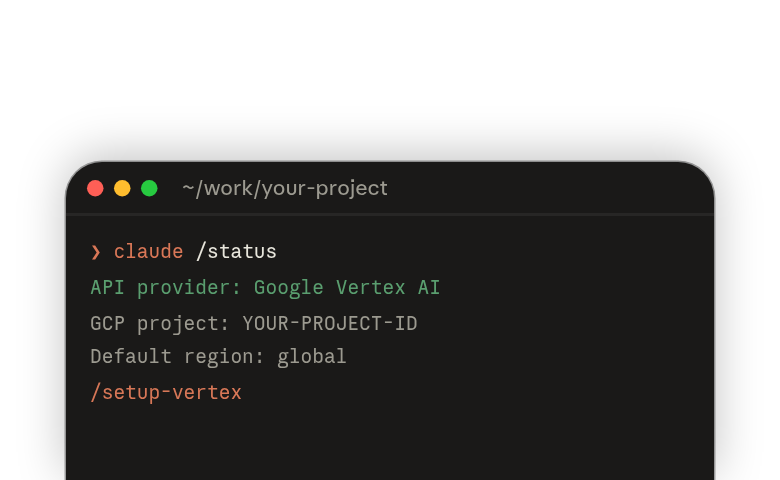
Check that it's using the project you meant. Run /status. The API provider line shows Google Vertex AI. The GCP project, Default region, and Model lines show your project ID, your region, and the resolved model. Compare the project ID with the project from "Get the project ready, once."
Claude Opus models have a higher per-token price than Sonnet models. With all three pinned, Claude Code's primary model is still Opus, so you're billed at the Opus rate until you switch models with /model. To change your model pins, project, region, or credentials later, run /setup-vertex to reopen the wizard.
To set Claude Code up without the wizard, for example, in CI or a scripted rollout, set these environment variables in the shell where you start claude:
export CLAUDE_CODE_USE_VERTEX=1
export CLOUD_ML_REGION=global
export ANTHROPIC_VERTEX_PROJECT_ID=YOUR-PROJECT-ID
export ANTHROPIC_DEFAULT_OPUS_MODEL='claude-opus-5-5'
export ANTHROPIC_DEFAULT_SONNET_MODEL='claude-sonnet-5-5'
export ANTHROPIC_DEFAULT_HAIKU_MODEL='claude-haiku-5-5'
If /status then shows no API provider line, the variables aren't reaching the process. The manual setup steps(opens in new tab) cover the rest, including how to pin model versions for a team.
Claude Desktop
Claude Desktop can use Claude models through the same project, and Claude Cowork sessions run in that app. An IT administrator usually deploys it to every device, so ask whether yours already has. To try it on one device, fill in the same values by hand.
-
Open the in-app configuration window(opens in new tab). Go to Help → Troubleshooting → Enable Developer Mode, then Developer → Configure Third-Party Inference….
-
Choose the provider. In the Connection section, set Inference provider to Vertex AI.
-
Fill in the Vertex AI credentials card. Put your project ID in GCP project ID and a region in GCP region. The region can be
global. Then provide exactly one credential source. GCP credentials file path accepts the file thatgcloud auth application-default loginproduces. Google lists where that file is saved(opens in new tab). -
Add a model. Under Models, add at least one Model list entry, using the publisher model ID of a model you enabled, for example,
claude-opus-5-5. -
Apply the settings. Click Apply Changes. The app writes the configuration to this device only and relaunches into it. Then send a message to check that Claude answers.
Deploy Claude Desktop on 3P with Google Cloud's Agent Platform(opens in new tab) covers the other ways to sign in and how to push the settings to every device.
If it doesn't work
These errors can stop Claude Code from reaching Claude. Find yours in the table, then apply its fix.
| What you see | What to do |
|---|---|
| "Could not load the default credentials" | Run gcloud auth application-default login to set up Application Default Credentials. |
| "model not found", a 404 error | Confirm that the model is enabled in Model Garden. Then verify that the model is available in the location you specified. With the region global, check in Model Garden, under "Supported features", that your models support global endpoints. |
| A quota issue | Check your current quotas or request a quota increase through the Cloud Console(opens in new tab). |
| A 429 error | On a regional endpoint, make sure that the primary model and the small, fast model are supported in your region. Consider switching to the region global for better availability, unless you need data residency. If you already use global, us, or eu, check your quotas or request an increase through the Cloud Console(opens in new tab). |
A model can be missing from a location. Some models are offered only on global or multi-region locations such as eu and us, not in specific regions. If you change your region, verify that your models are available there.
These fixes come from Troubleshooting in Claude Code on Google Cloud's Agent Platform(opens in new tab), which goes further. For Claude Desktop, start from its own Troubleshoot section(opens in new tab).
Where to go next
Keep your project ID and your region where you can find them. Claude Code, Claude Desktop, and the SDK clients all ask for them.
- To learn Claude Code, take Claude Code 101(opens in new tab), then Claude Code in action(opens in new tab).
- To learn Claude Cowork, take Introduction to Claude Cowork(opens in new tab).
- To call Claude from your own code, follow the Google managed docs page(opens in new tab). It shows how to install an SDK and make a request with the
AnthropicVertexclient.
For more on the service itself, the docs have a section on each of these: