> ## Documentation Index
> Fetch the complete documentation index at: https://claude.com/docs/llms.txt
> Use this file to discover all available pages before exploring further.
# Import history from claude.ai
> Bring conversations, projects, and local Cowork and Code sessions into Claude Desktop on 3P from a claude.ai workspace or an earlier install
Import brings a copy of your claude.ai conversations and projects into Claude Desktop on third-party (3P), along with any Cowork and Claude Code sessions already on this machine from an earlier install. Everything lands in the local session store described in [User identity and local data](/docs/third-party/claude-desktop/data-storage), so you can pick up work you started on claude.ai and continue it against your organization's own inference provider.
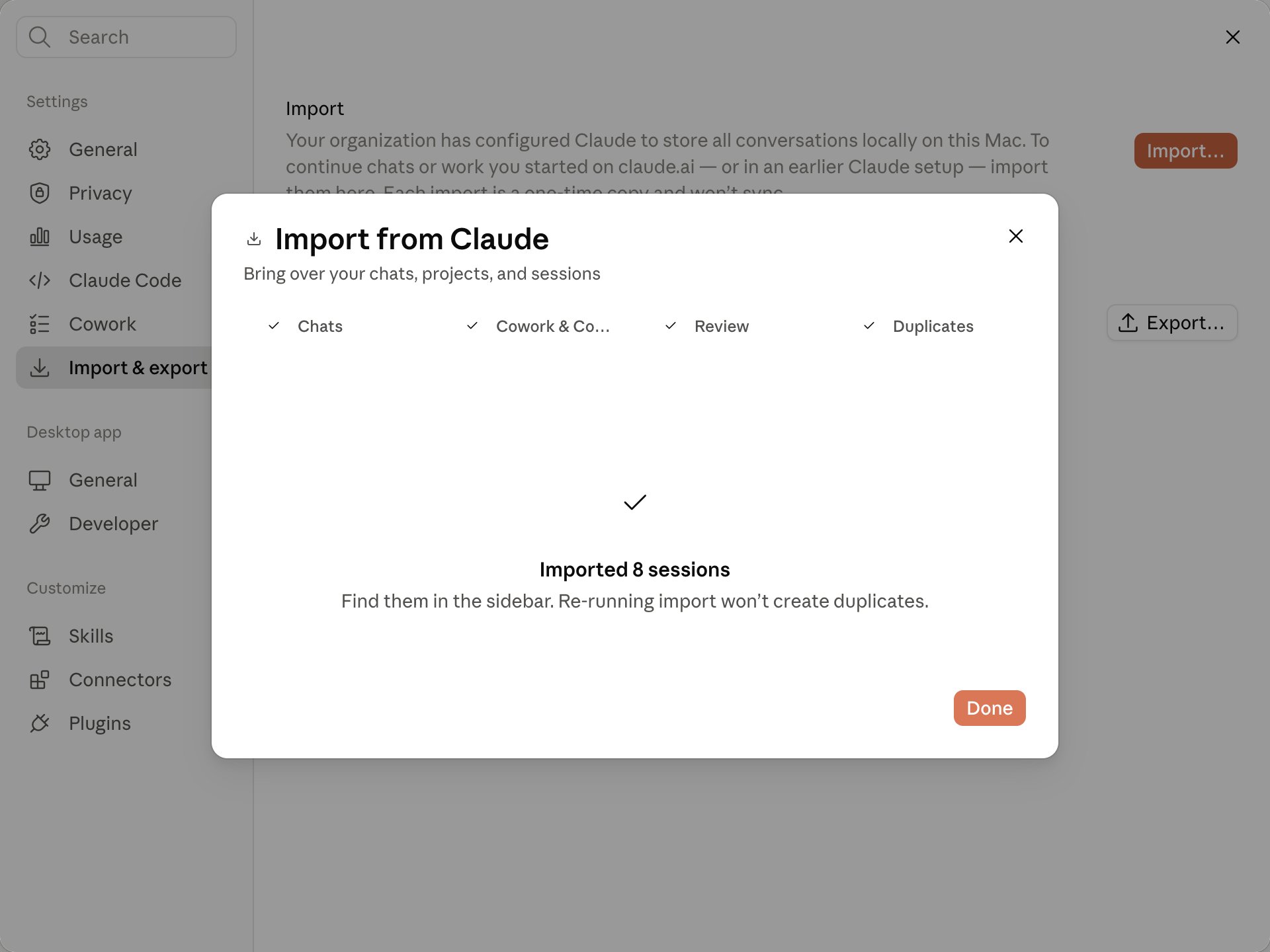
Each import is a one-time copy. New activity on claude.ai after you import does not appear in Claude Desktop unless you import again, and re-running the import does not create duplicates.
## Before you start
* Your administrator has turned import on by setting [`claudeAiImport`](/docs/third-party/claude-desktop/configuration#claudeaiimport) with `enabled` set to `true` in the managed configuration. Import is off by default; until then, **Settings → Import & export** reports that import isn't enabled for this deployment.
* Claude Desktop is installed and running in third-party mode. See [Installation and setup](/docs/third-party/claude-desktop/installation).
* To bring history over from a claude.ai Team or Enterprise workspace, an owner of that workspace has enabled member data export (next section). Personal claude.ai accounts can always export.
## Enable member data export (admins)
On Team and Enterprise workspaces, member data export is off by default. A workspace owner enables it on claude.ai under **Settings → Organization → Data and privacy → Allow members to export their own data**.
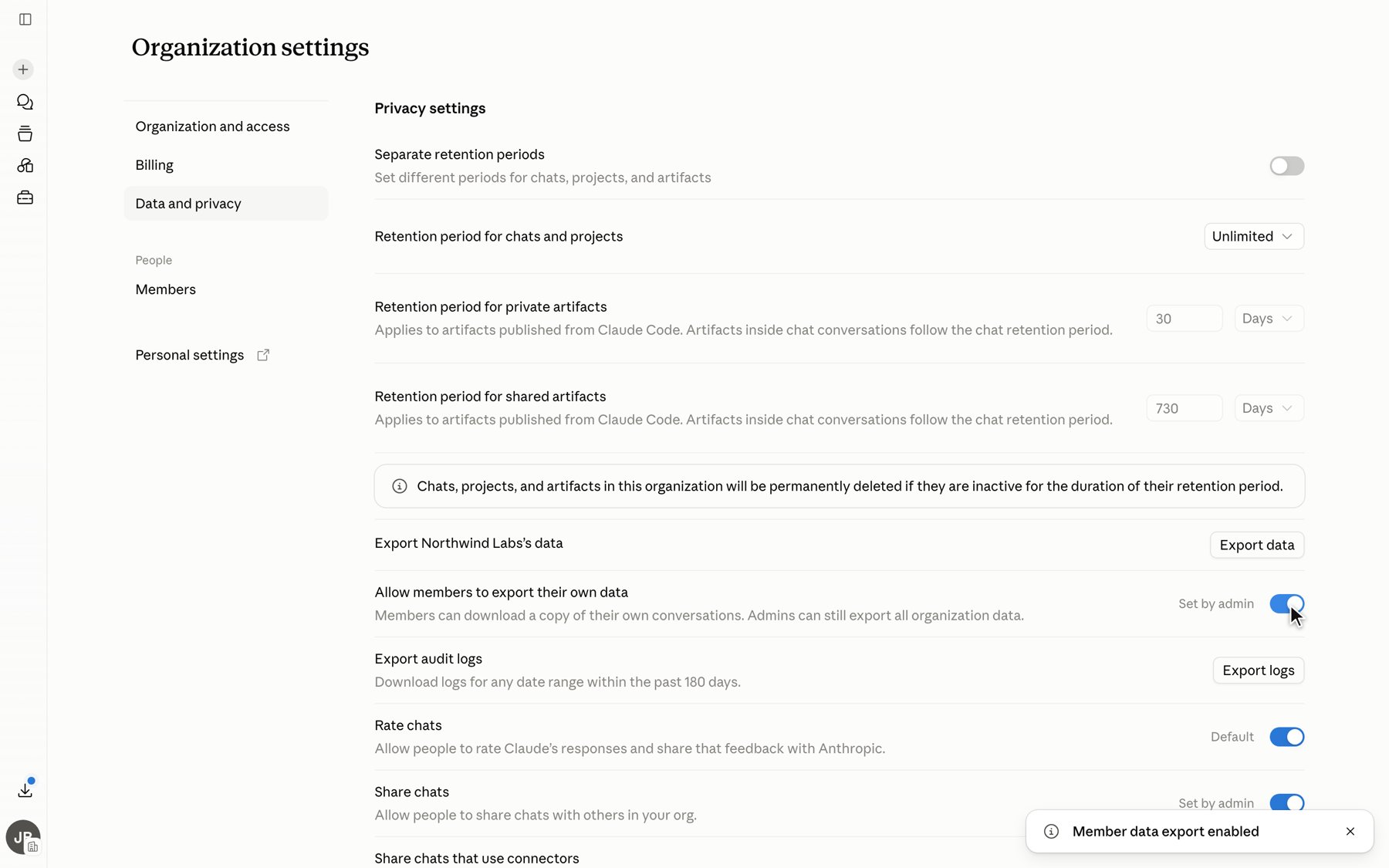 Members of the workspace can then export their own conversations. The toggle does not expose one member's data to another; each member can download only their own history.
## Open the import wizard
In Claude Desktop, go to **Settings → Import & export** and click **Import…** to open the **Import from Claude** wizard.
Members of the workspace can then export their own conversations. The toggle does not expose one member's data to another; each member can download only their own history.
## Open the import wizard
In Claude Desktop, go to **Settings → Import & export** and click **Import…** to open the **Import from Claude** wizard.
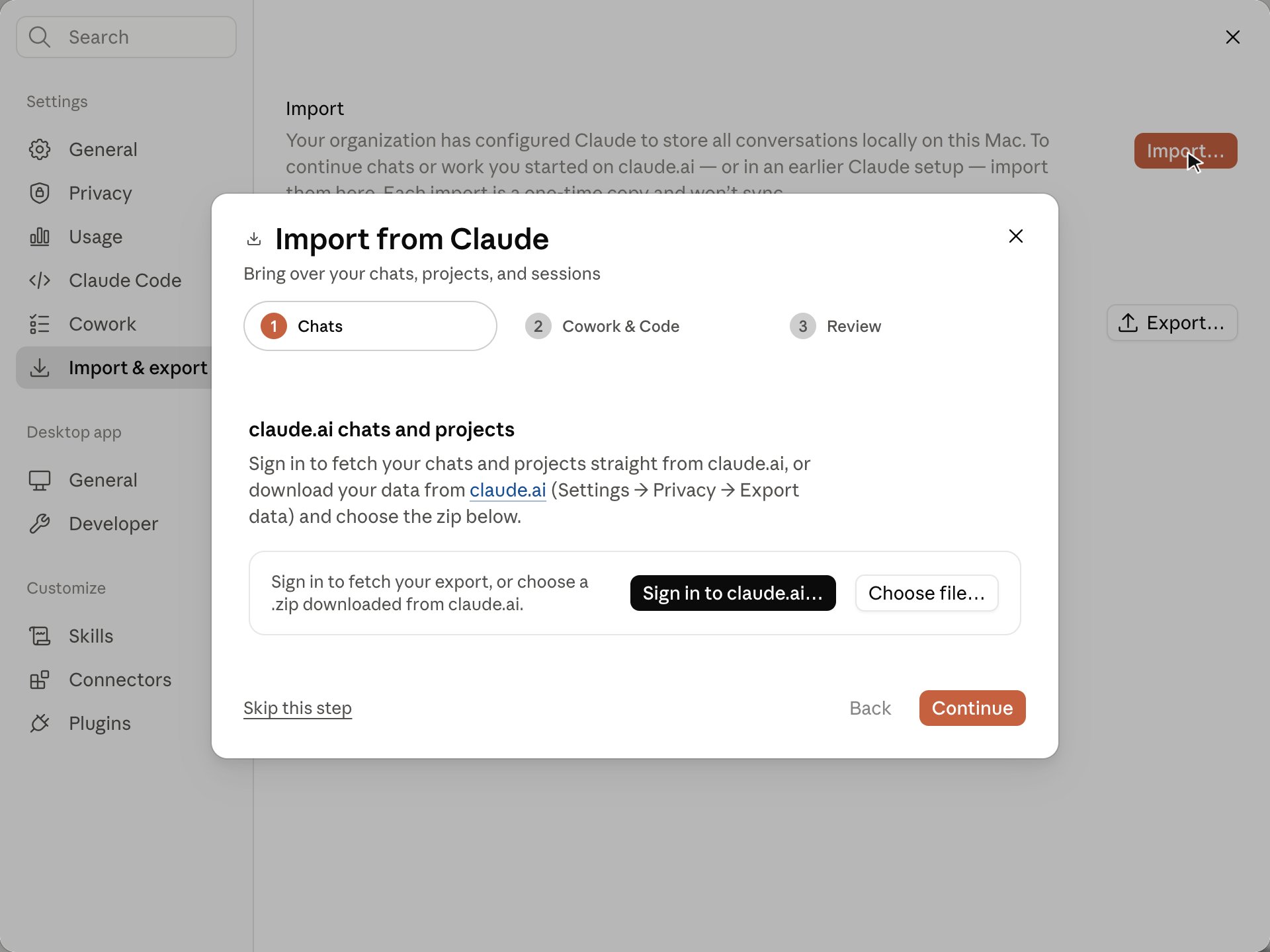 The wizard has three steps: **Chats** (your claude.ai export), **Cowork & Code** (local sessions on this machine), and **Review**. Skip any step you don't need. A fourth step, **Duplicates**, appears after the import only when an imported project has the same name as one you already have. See [If a project already exists](#if-a-project-already-exists).
## Step 1: claude.ai chats and projects
You can pull your claude.ai history straight into the wizard by signing in, or download it from claude.ai yourself and choose the file.
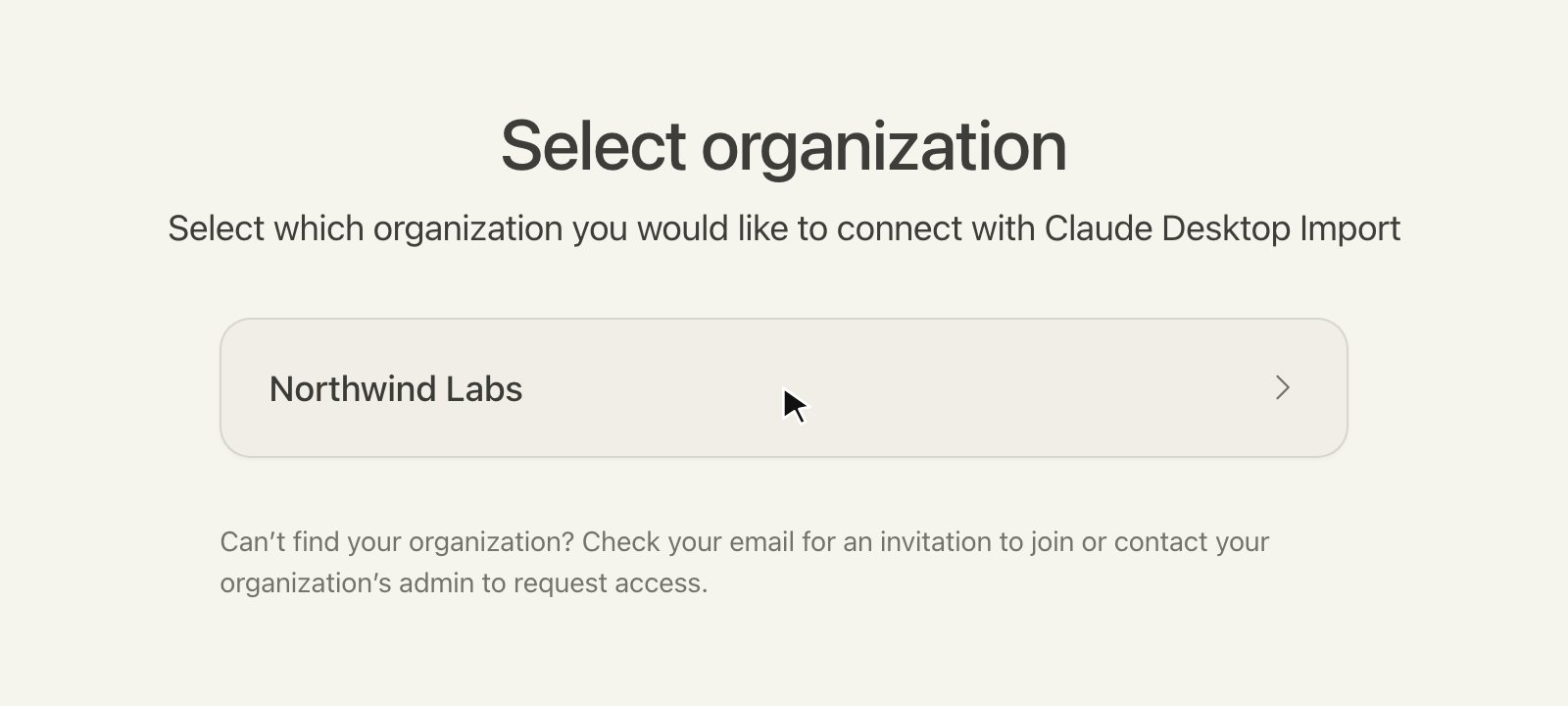
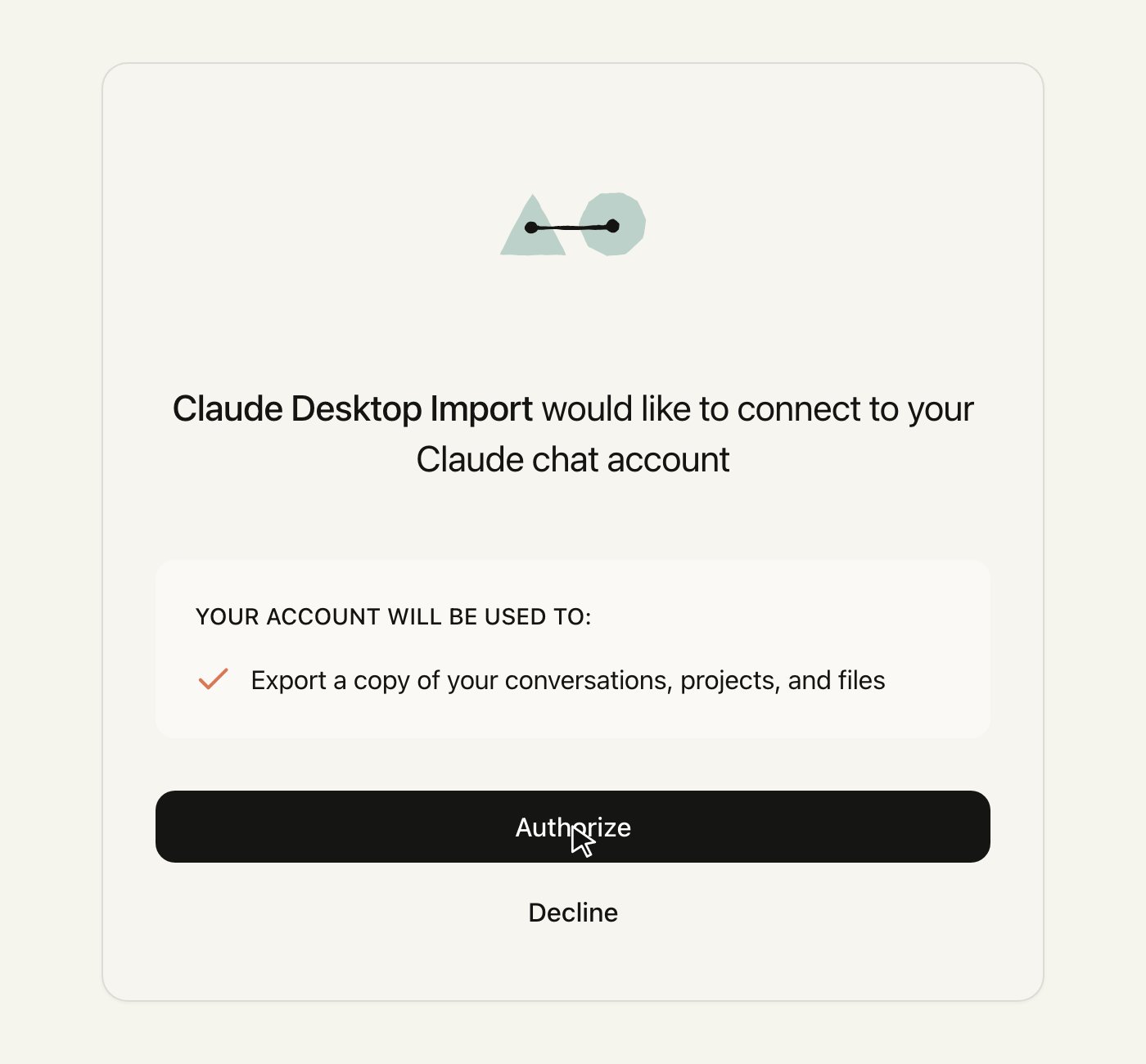
Click **Sign in to claude.ai…**. Your browser opens to claude.ai; sign in if prompted, choose your organization if you belong to more than one, and click **Authorize**.
The wizard has three steps: **Chats** (your claude.ai export), **Cowork & Code** (local sessions on this machine), and **Review**. Skip any step you don't need. A fourth step, **Duplicates**, appears after the import only when an imported project has the same name as one you already have. See [If a project already exists](#if-a-project-already-exists).
## Step 1: claude.ai chats and projects
You can pull your claude.ai history straight into the wizard by signing in, or download it from claude.ai yourself and choose the file.
Click **Sign in to claude.ai…**. Your browser opens to claude.ai; sign in if prompted, choose your organization if you belong to more than one, and click **Authorize**.
 Back in Claude Desktop, click **Fetch export**. The wizard requests an export from claude.ai, downloads it, and shows what it found.
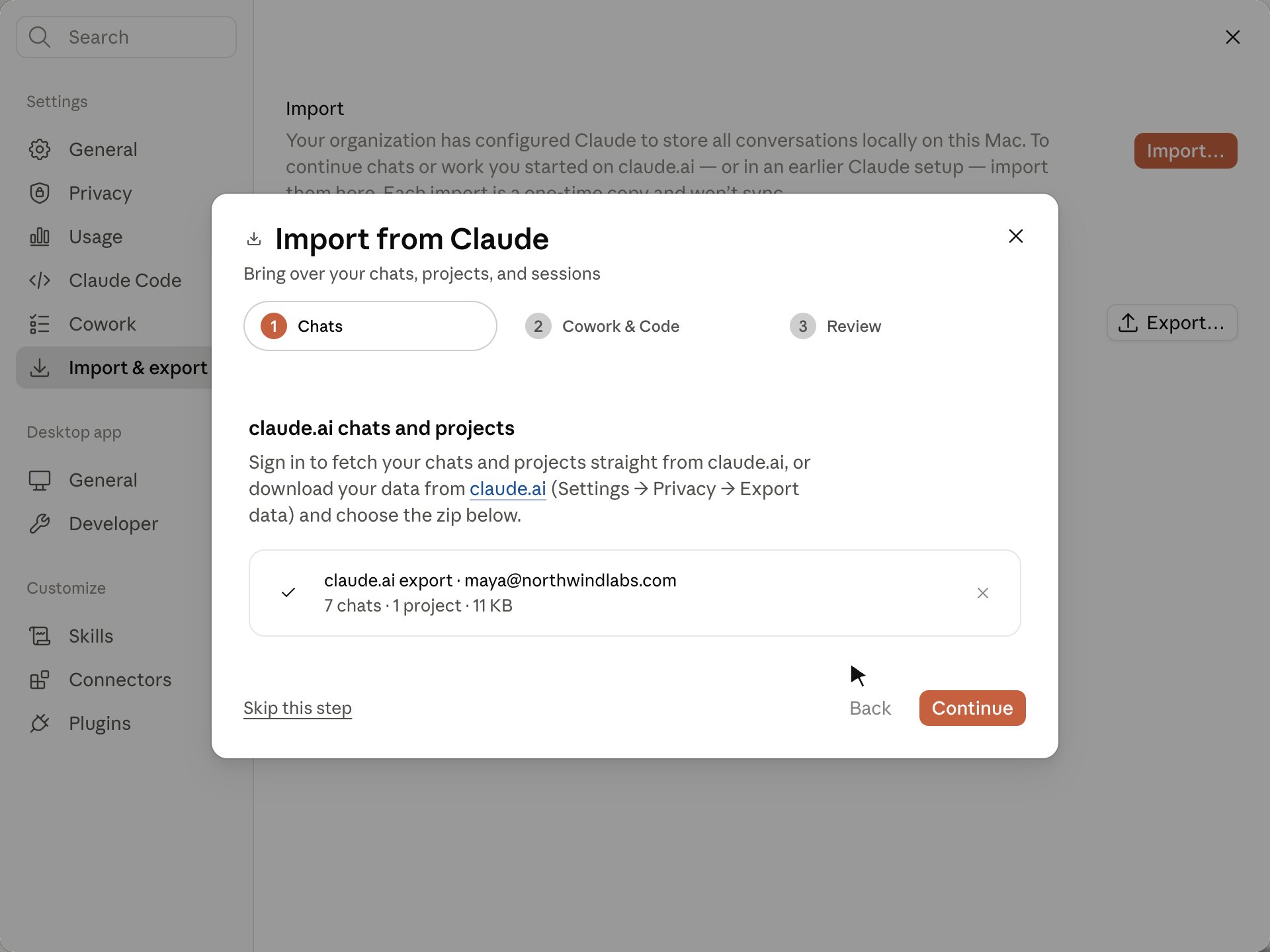 On claude.ai, go to **Settings → Privacy → Export data** and click **Export**. If you don't see **Export data**, ask a workspace owner to [enable member data export](#enable-member-data-export-admins).
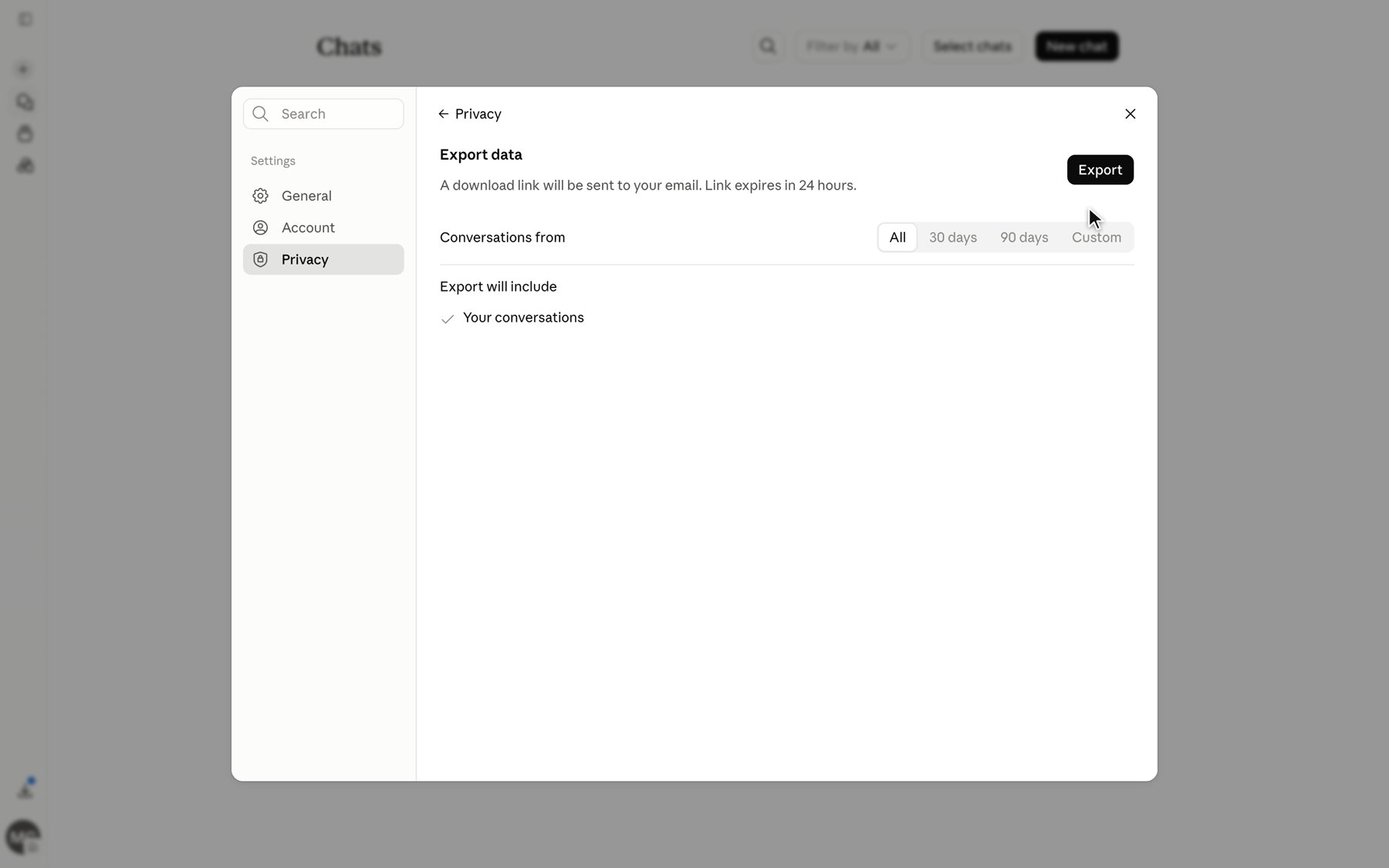 claude.ai emails you a download link when the export is ready. The link expires after 24 hours.
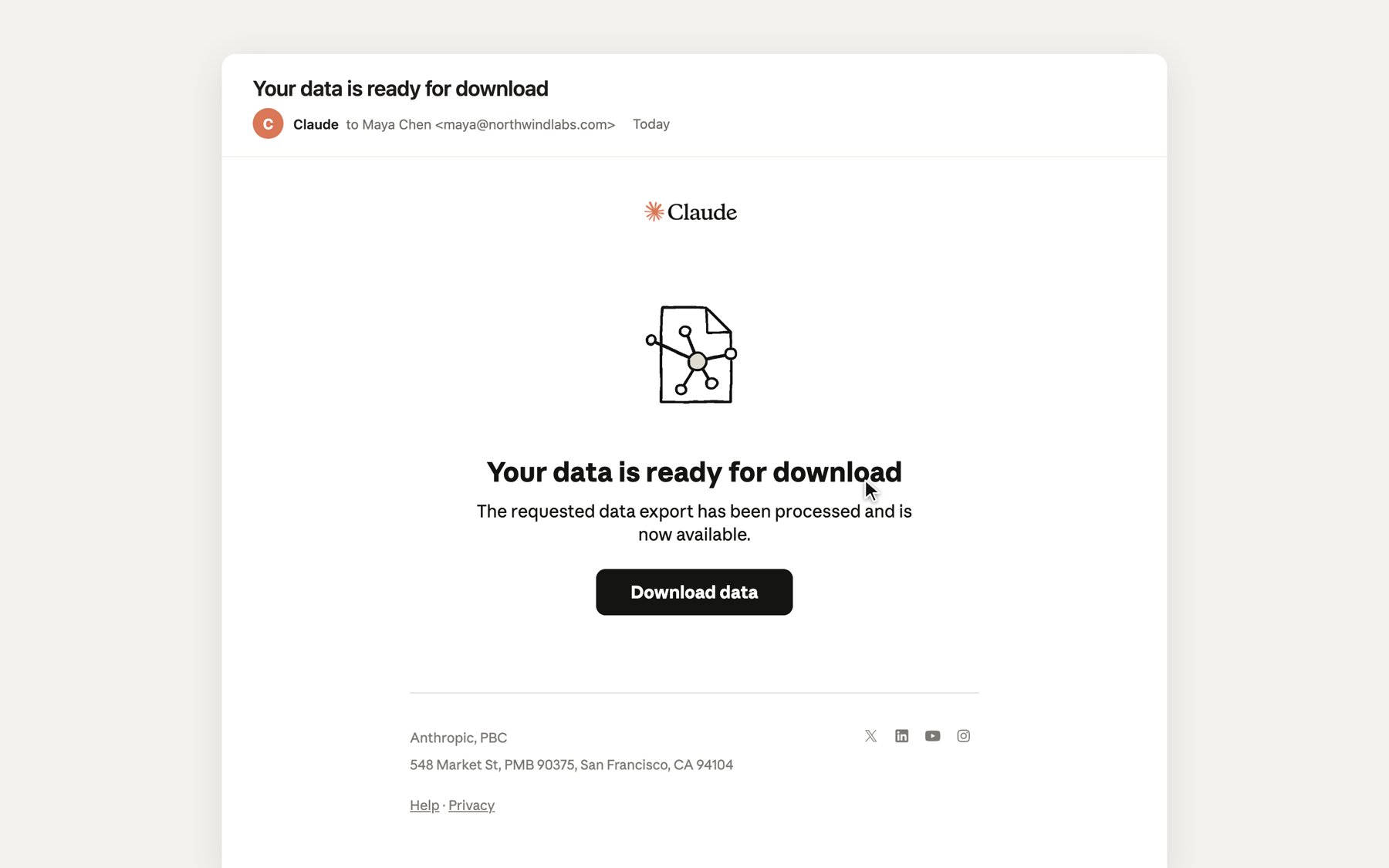 Download the `.zip`, then in the import wizard click **Choose file…** and select it.
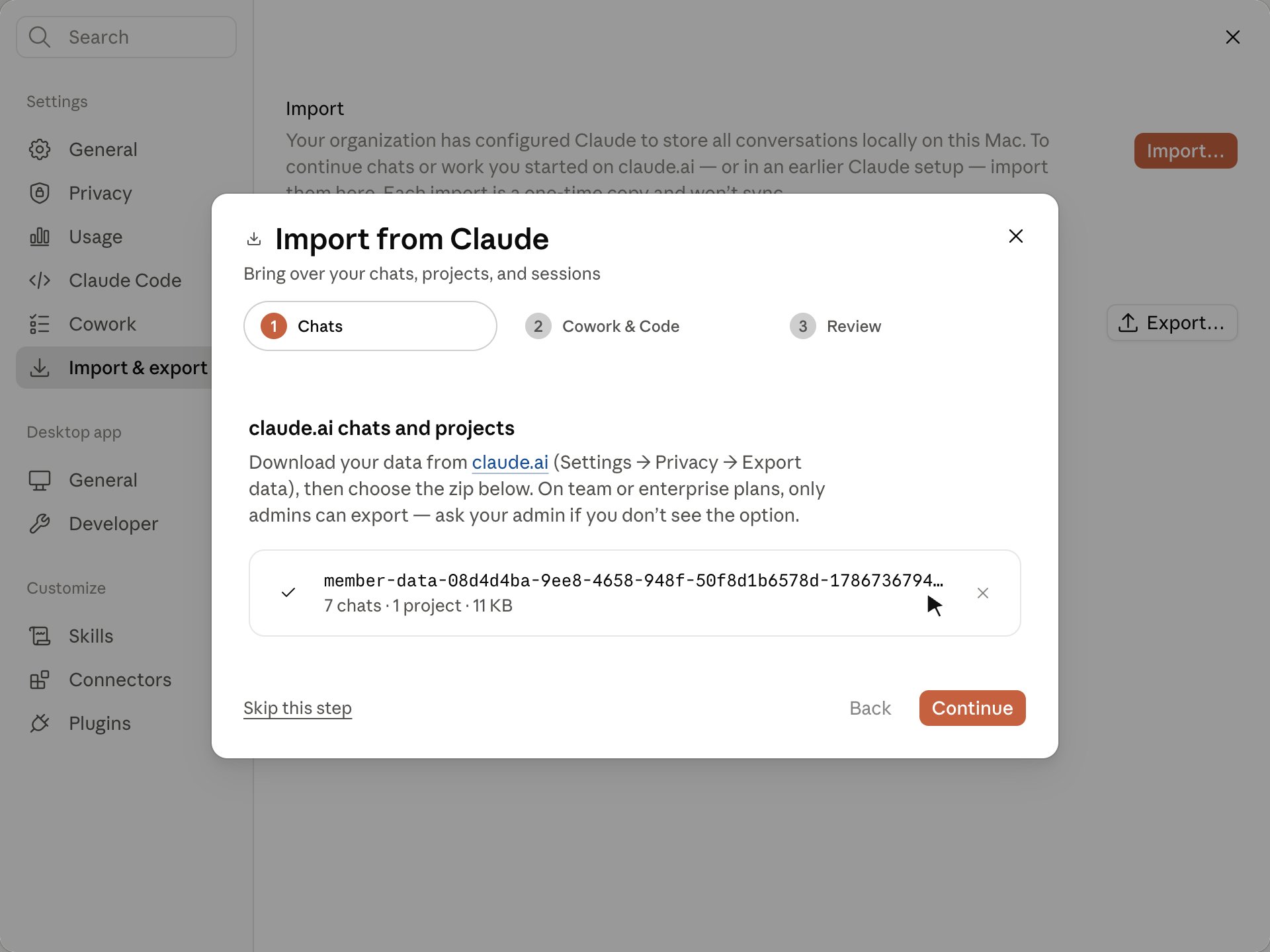 Click **Continue**, or **Skip this step** if you only want to bring in local sessions.
## Step 2: local Cowork and Code sessions
The wizard scans this machine for Cowork and Claude Code sessions from an earlier Claude Desktop install and lists what it finds. Choose how far back to include, and add any other folder that holds sessions (for example, a backup or a folder copied from another machine).
Click **Continue**, or **Skip this step** if you only want to bring in local sessions.
## Step 2: local Cowork and Code sessions
The wizard scans this machine for Cowork and Claude Code sessions from an earlier Claude Desktop install and lists what it finds. Choose how far back to include, and add any other folder that holds sessions (for example, a backup or a folder copied from another machine).
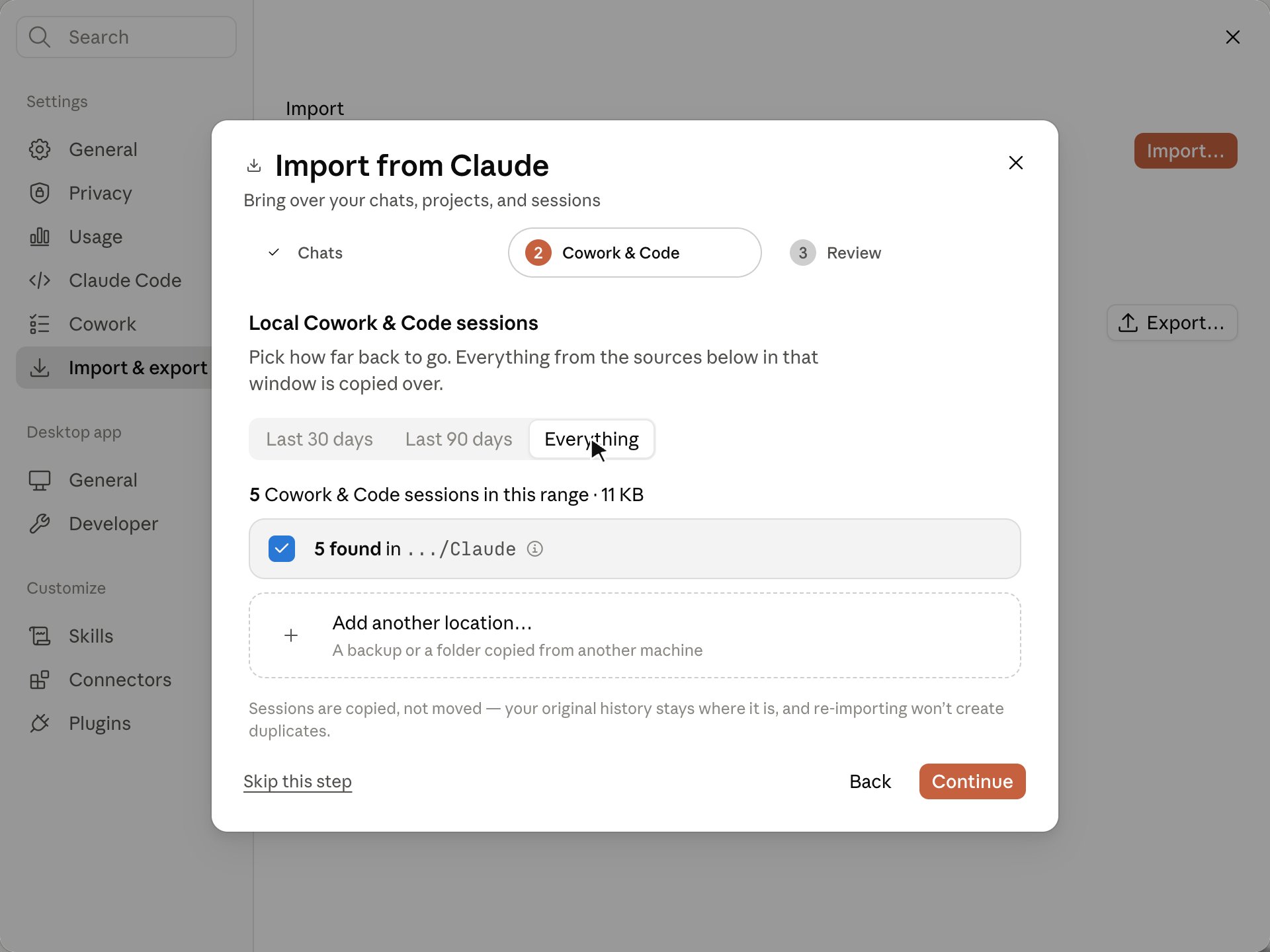 Sessions are copied, not moved. Your original history stays where it is.
## Step 3: review and import
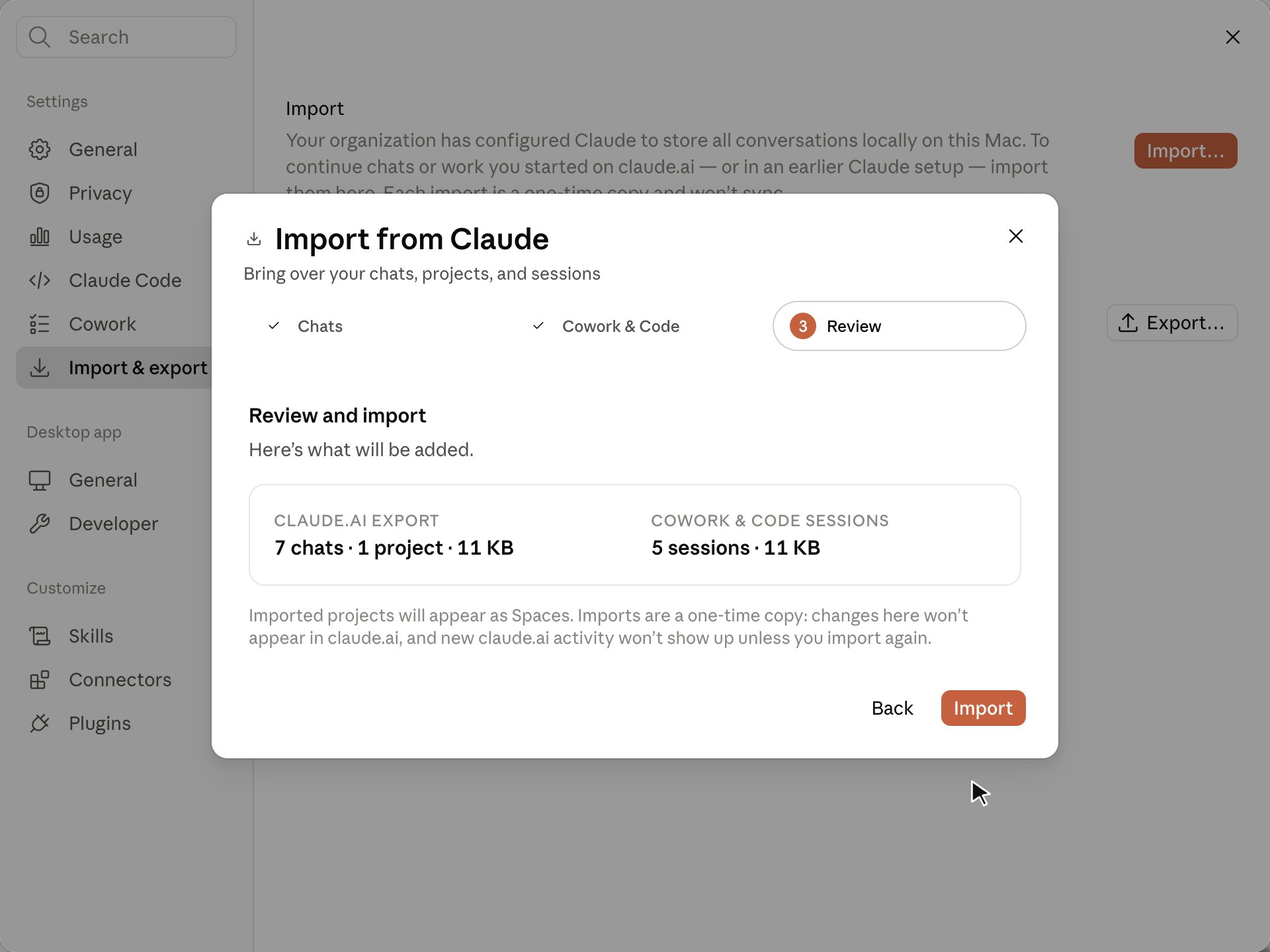
The **Review** step summarizes what will be added. Click **Import** to copy everything into your local session store.
Sessions are copied, not moved. Your original history stays where it is.
## Step 3: review and import
The **Review** step summarizes what will be added. Click **Import** to copy everything into your local session store.
 ## If a project already exists
When an imported project has the same name as a project already in Claude Desktop, the wizard adds a **Duplicates** step after the import finishes. This happens, for example, when you set up **Northwind** on this machine and then bring over history from another machine that also has a Northwind project. The step lists each match with two choices.
## If a project already exists
When an imported project has the same name as a project already in Claude Desktop, the wizard adds a **Duplicates** step after the import finishes. This happens, for example, when you set up **Northwind** on this machine and then bring over history from another machine that also has a Northwind project. The step lists each match with two choices.
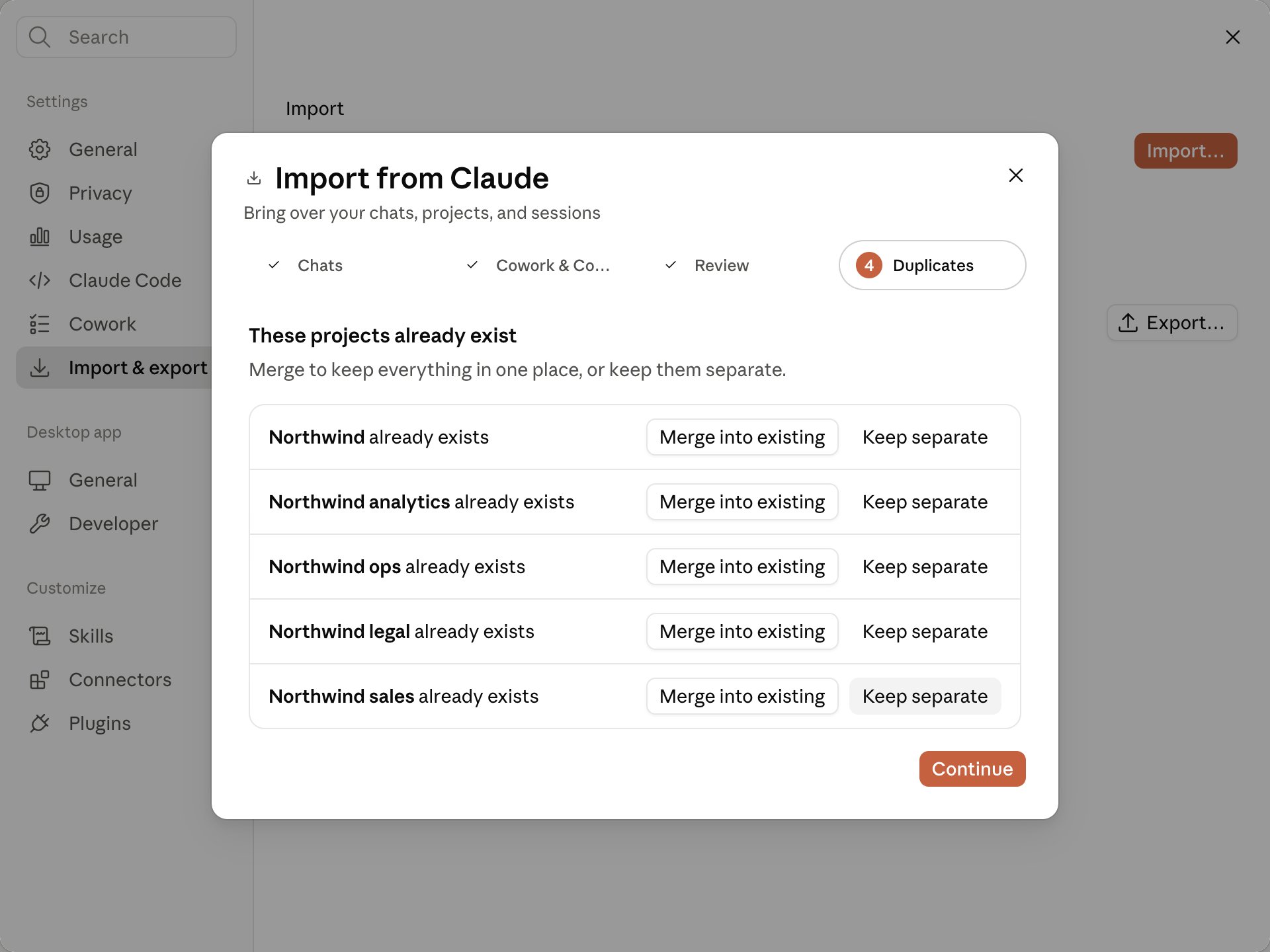 * **Merge into existing** moves the imported chats and sessions into your existing project and removes the duplicate. Folders you attached to the duplicate move with them. If your existing project has no instructions of its own, the imported project's instructions are shown there for you to review and accept. Later imports from the same source land in the existing project as well.
* **Keep separate** leaves both projects in place. The imported one keeps a numbered name, such as **Northwind (1)**, and Claude Desktop stops offering to merge it.
The **Projects** page offers the same two choices, in a row under the duplicate project's card and at the top of the duplicate project's own page. Decide there if your history was brought over automatically when you signed in, so you never saw the wizard, or if you closed the wizard before choosing.
## Continue an imported conversation
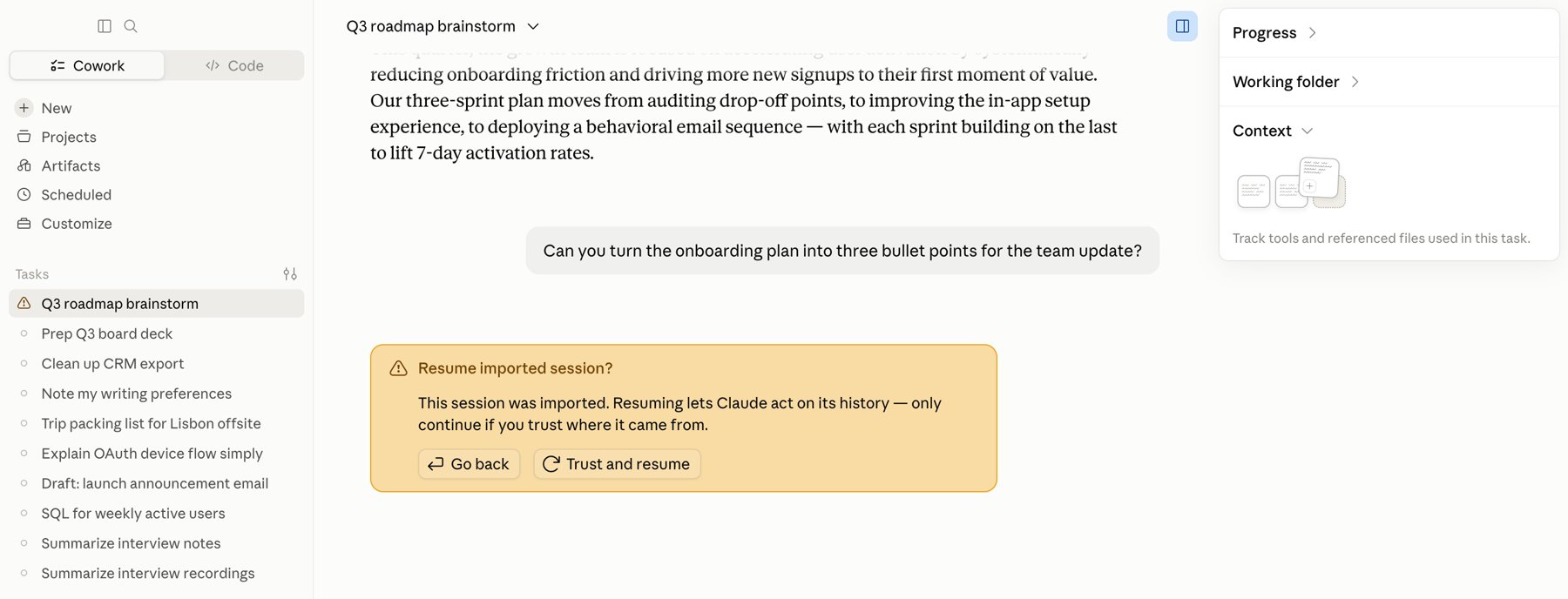
Open any imported conversation from the sidebar and keep chatting. The first time you send a message in an imported session, Claude Desktop shows a **Resume imported session?** prompt. Click **Trust and resume** to continue; the reply comes from your configured inference provider, not from claude.ai.
* **Merge into existing** moves the imported chats and sessions into your existing project and removes the duplicate. Folders you attached to the duplicate move with them. If your existing project has no instructions of its own, the imported project's instructions are shown there for you to review and accept. Later imports from the same source land in the existing project as well.
* **Keep separate** leaves both projects in place. The imported one keeps a numbered name, such as **Northwind (1)**, and Claude Desktop stops offering to merge it.
The **Projects** page offers the same two choices, in a row under the duplicate project's card and at the top of the duplicate project's own page. Decide there if your history was brought over automatically when you signed in, so you never saw the wizard, or if you closed the wizard before choosing.
## Continue an imported conversation
Open any imported conversation from the sidebar and keep chatting. The first time you send a message in an imported session, Claude Desktop shows a **Resume imported session?** prompt. Click **Trust and resume** to continue; the reply comes from your configured inference provider, not from claude.ai.
 ## Export sessions to move them to another device
When your administrator also sets `exportEnabled` to `true` under `claudeAiImport`, **Settings → Import & export** offers **Export…**, which writes this computer's chats, Cowork tasks, and Code sessions (not terminal Claude Code sessions) to a zip file. On the other device, open the import wizard and select that zip with **Choose file…**; the wizard lists its sessions in the [Cowork & Code step](#step-2-local-cowork-and-code-sessions). The export is a one-time snapshot, not a sync, and the zip contains full conversation content, so handle it as sensitive data.
## What is and isn't included
* **Your data only.** An export contains your own conversations, projects, and memory. Other workspace members' content is not included.
* **Chats and projects come over.** Each imported project appears on the **Projects** page. If the project has custom instructions, Claude Desktop shows them in the project for you to review and accept before they take effect.
* **Project knowledge files and conversation attachments do not.** A member's own export never includes the contents of files uploaded to a project's knowledge or attached to a conversation. This is a security policy on claude.ai, and it applies to both the **Sign in to claude.ai** and **Choose a downloaded file** paths. Imported chats keep the messages that referenced an attachment, but not the file itself. The only export that includes file contents is an organization-level export, which only a workspace owner can request.
* **One-time copy.** Imported history does not stay in sync with claude.ai. Run the import again to pick up newer conversations; existing imports are matched and skipped, so you won't get duplicates.
* **Download links expire.** The email link from claude.ai is valid for 24 hours. Request a new export if it lapses.
## Export sessions to move them to another device
When your administrator also sets `exportEnabled` to `true` under `claudeAiImport`, **Settings → Import & export** offers **Export…**, which writes this computer's chats, Cowork tasks, and Code sessions (not terminal Claude Code sessions) to a zip file. On the other device, open the import wizard and select that zip with **Choose file…**; the wizard lists its sessions in the [Cowork & Code step](#step-2-local-cowork-and-code-sessions). The export is a one-time snapshot, not a sync, and the zip contains full conversation content, so handle it as sensitive data.
## What is and isn't included
* **Your data only.** An export contains your own conversations, projects, and memory. Other workspace members' content is not included.
* **Chats and projects come over.** Each imported project appears on the **Projects** page. If the project has custom instructions, Claude Desktop shows them in the project for you to review and accept before they take effect.
* **Project knowledge files and conversation attachments do not.** A member's own export never includes the contents of files uploaded to a project's knowledge or attached to a conversation. This is a security policy on claude.ai, and it applies to both the **Sign in to claude.ai** and **Choose a downloaded file** paths. Imported chats keep the messages that referenced an attachment, but not the file itself. The only export that includes file contents is an organization-level export, which only a workspace owner can request.
* **One-time copy.** Imported history does not stay in sync with claude.ai. Run the import again to pick up newer conversations; existing imports are matched and skipped, so you won't get duplicates.
* **Download links expire.** The email link from claude.ai is valid for 24 hours. Request a new export if it lapses.