1. Describe the task
Years of files piling up in Google Drive—downloads you never sorted, documents people shared with you, old project folders mixed with random screenshots. The task of organizing it feels endless, so it never happens. Claude in Chrome can navigate your Drive, create a folder structure, and move files where they belong while you do something else.
Tell Claude what kind of organization you want, or let it figure out a structure based on what's there. You review the results instead of doing the sorting yourself.
I need to organize my Google Drive by reviewing all files and creating a logical folder structure.
What to do:
- Scan through my Drive including Downloads, Shared with me, and the root level
- Create appropriately named folders based on what you find (e.g., by project, file type, or year)
- Move files into the folders you create
- Flag anything you're unsure about or think I should delete
Before moving files: Show me your proposed folder structure and any files you're uncertain about. I'll review before you finalize.
2. Give Claude context
Claude works directly in your Google Drive through the browser—the same interface you'd use. It can see your files, create folders, and move things around without downloading or uploading anything.
Required context
Log into Google Drive before starting. If you have specific folders you want to preserve or a naming convention you prefer, mention that in your prompt.
If your Drive is very large, consider asking Claude to start with one section—like just your Downloads or just files from the past year. You can expand from there.
3. What Claude creates
Claude reports what it organized, what it moved, and what needs your decision before going further.
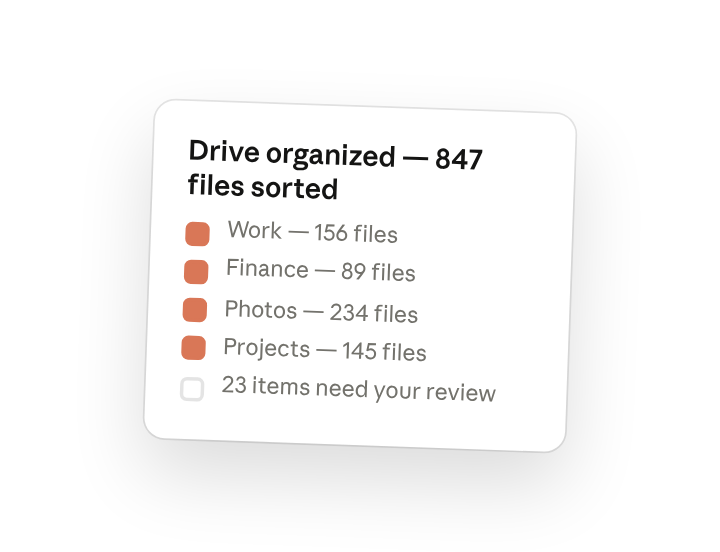
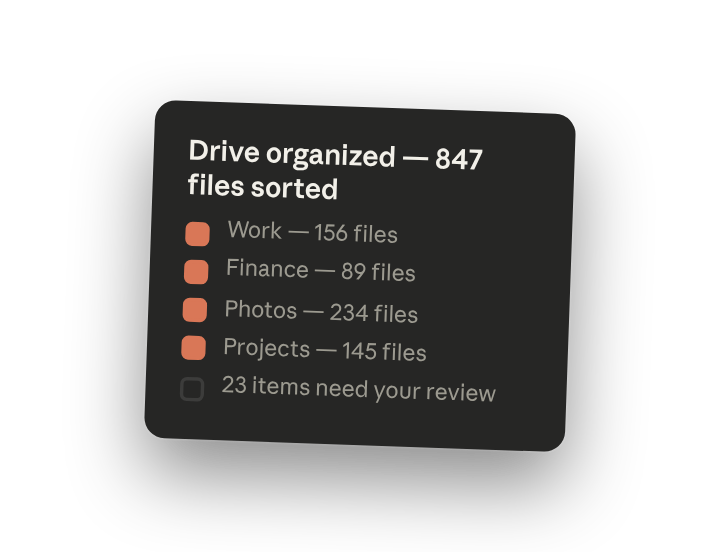
Drive Organized
847 files sorted | 12 folders created | 23 items need your review
I went through everything in your Drive and created a structure based on what I found. Here's the new layout:
New Folder Structure
| Folder | Files | What's in it |
|---|---|---|
| Work | 156 | Documents with company names, meeting notes, presentations |
| Finance | 89 | Tax docs, receipts, bank statements, invoices |
| Photos | 234 | Images and screenshots, organized by year |
| Personal | 67 | Travel docs, medical records, insurance |
| Projects | 145 | Grouped by project name where I could identify one |
| Reference | 52 | Manuals, guides, saved articles |
| Shared With Me | 73 | Files owned by others (can't move these, but grouped the view) |
| Archive | 0 | Empty for now—waiting for your approval on old files |
Needs Your Review
Duplicates Found (8 sets)
- Budget_2023.xlsx — 3 versions, newest is from October 2023
- Resume.pdf — 4 versions across folders
- Project_Proposal.docx — 2 identical copies
I haven't deleted anything. Say the word and I'll keep the newest version of each.
Old Files to Consider Archiving (12 files)
- 6 documents last opened in 2021 or earlier
- 4 spreadsheets from a project that looks finished
- 2 PDFs that appear to be outdated versions of current docs
Couldn't Categorize (3 files)
- Document (3).docx — Appears to be meeting notes but no clear project
- Untitled.gdoc — Blank document
- scan0042.pdf — Scanned document, can't determine content
Everything Else
Sorted and in place.
Want me to handle the duplicates, move the old files to Archive, or rename the unclear ones?
4. Follow up prompts
Continue the conversation with Claude to refine, expand, or explore further.
Remove the duplicates
Clean up redundant copies once you've confirmed which version to keep. Claude can delete in bulk or one at a time.
Go ahead and delete the duplicate files you found. Keep the most recent version of each.
Archive old files
Move untouched files out of your main view without deleting them. Useful for anything you might need later but don't want cluttering your folders.
Move everything that hasn't been opened in over a year to an Archive folder. I'll look through it later but get it out of my main view.
Rename files consistently
Replace generic names with descriptive ones based on file contents. Easier to search later.
A lot of these files have useless names like 'Document (3)' or 'Screenshot 2023-04-12'. Can you rename them based on what's actually in them?
5. Tricks, tips, and troubleshooting
Save your organization system as a shortcut
Once you've refined your folder structure preferences, save your prompt as a shortcut (type "/" and create one like /drive-organize). Include your preferred folder names and file categories so future cleanups match your system.
Schedule monthly maintenance
Turn on the schedule toggle for the ability to schedule this workflow. Claude runs the workflow automatically and notifies you when there's something to review. This keeps a regular scan for new unsorted files and duplicates to keep your Drive organized long term.
Claude asks before deleting anything
File deletion is a high-risk action. Even in "Act without asking" mode, Claude will pause and request approval before permanently removing files. Duplicates and old files get flagged for review—nothing disappears without your explicit confirmation.
6. Ready to try for yourself?
Claude in Chrome is available to all paid subscribers. Install the extension and open Google Drive in Chrome. Claude works with your existing login—no API keys or integrations to set up. Start with one folder to see how it organizes before tackling your whole Drive.