1. Describe the task
Claude's ability to combine standard information with personalized details, paired with your knowledge of what new hires actually need, lets you create welcoming, practical guides without manually assembling the same pieces each time.
Tell Claude about the new hire (name, role, start date, team, manager) and point to your standard company information. Ask for a first week guide that combines everything they need to know in one place.
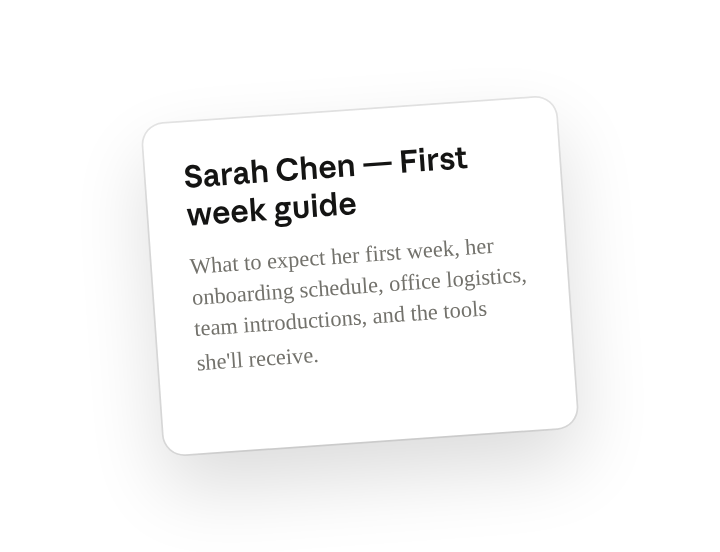
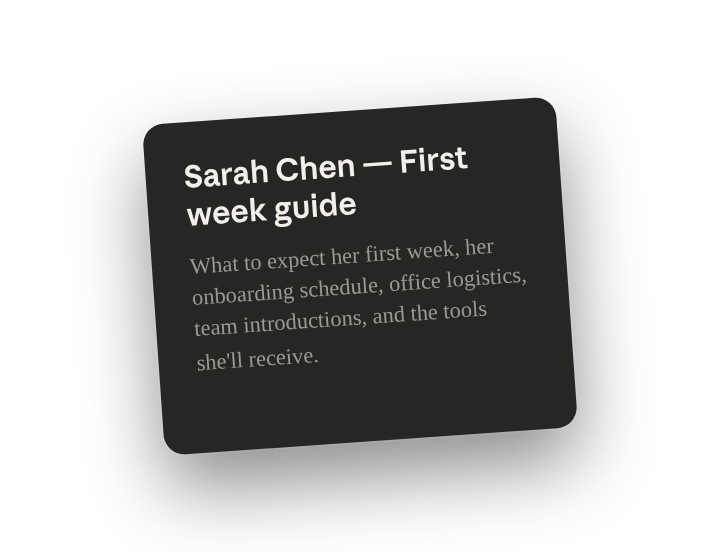
Create a first week guide for Sarah Chen, starting as Senior Product Designer on our Design Systems team this Monday, November 4th. Her manager is Michael Torres.
Include:
- Welcome and what to expect their first week
- Her specific onboarding schedule
- Office logistics
- Team introductions
- Tools and access she'll receive
- Common first-week questions
To find relevant information, search my Google Calendar for onboarding events, her team's slack channel #design-systems, and all the documents I've uploaded.
Make it information-dense but beautifully organized—a senior designer should look at this and think "they have great taste here." Use sophisticated typography and layout, not generic HR formatting. She should be able to scan it quickly but find everything she needs.
2. Give Claude context
Provide your standard company information and the new hire's specific details so Claude can create a guide that feels informational, welcoming, and personally relevant.
Required context
Enable the Google Calendar integration(opens in new tab) so Claude can reformat your onboarding calendar events into a schedule for the new hire.
Upload your company handbook, office logistics documents, and any role-specific onboarding information.

3. What Claude creates
Claude combines your standard company information with personalized details into a single, welcoming guide that equips new hires with helpful, specific onboarding information.
Done! I've created Sarah's first week guide with everything she needs to feel prepared.
The guide includes:
- Personal welcome addressing her role and team
- Day-by-day breakdown of her first week with specific meetings and orientations
- Office essentials (parking in Lot C, building access via badge pickup, nearby lunch spots)
- Her team structure with names, roles, and what each person works on
- Tools she'll get access to and when (Figma, Miro, Jira, Slack channels)
- Quick answers to common questions (What to wear? When do I get paid? Who do I ask for help?)
- Key contacts organized by need (IT issues → Jake, expense questions → Finance team)
The document balances being informative without overwhelming—she can read it Sunday night and feel confident about Monday morning.
View Sarah's first week guide
4. Follow up prompts
Continue the conversation with Claude to refine, expand, or explore further.
Batch create for multiple new hires
Generate personalized versions for different recipients from a single template. Claude customizes content for each person's role, team, or context while maintaining consistency.
I have four people starting Monday: Alex (Engineering), Maria (Sales), Jordan (Marketing), Sam (Customer Success). Find their details and schedules across my Google Drive and Calendar. Then, create a personalized first week guide for each person—same company logistics but customized for their role, team, and what matters for their position.
Add additional features
Embed images, diagrams, or hyperlinks into your documents. Claude handles both the upload and formatting.
Using the files I just uploaded, add our team photo to the 'Your Team' section and the Floor 3 office map. Also include hyperlinks for helpful context and navigation (our office building address, relevant email addresses, our company website).
Convert to other formats
Take one source document and create versions optimized for different uses—reading, presenting, emailing, printing. Claude adapts structure and formatting for each purpose.
Convert this word document into a PDF for printing, a bulleted list of urgent information and action items for email, and a powerpoint slide deck for presenting.
5. Tricks, tips, and troubleshooting
Iterate on design with specific feedback
If the first version doesn't look right, give Claude specific direction: "make it more information-dense, the first page has too much wasted space", “this looks too generic, create something that looks like a high-end creative agency made it not HR” or "the boxes aren't rendering correctly, simplify the table structure." Claude can quickly adjust typography, layout, spacing, or restructure entirely. Design iteration is fast.
Personalize the design
Clarify how you want your document to look by describing your design preferences to Claude—whether that's clean and minimal, bold and modern, or sophisticated and corporate. For even better results, upload your brand guidelines or screenshots of your company website so Claude can match your specific color schemes, typography, and overall design aesthetic.
Create a reusable template
Once you've created your initial guide, save its structure as a template within a 'New Hire Guide' Project. This project should include instructions on which tools to use for gathering company information and emphasize a warm yet practical tone. For each new hire, simply input their specific details, and Claude will personalize the template accordingly.
6. Ready to try for yourself?
Create a first week guide that helps your next hire walk in feeling confident instead of overwhelmed.