1. Describe the task
Claude connects to your messaging, task tools, and dashboards at the same time, reading full conversation histories, surfacing discussions you weren't part of, and tying metrics to the threads behind them.
In your prompt, describe how you want the briefing structured and what counts as urgent. Claude pulls together what matters into a single briefing.
I need my morning briefing. Pull from Slack and Notion, and visit my team dashboard: https://metrics.acme-corp.com/ops-team
Structure it as:
- Urgent items from the dashboard (anything red or trending down)
- Slack threads where I'm mentioned — read the full threads for context
- Threads I'm not in but should probably know about based on my current tasks
- Tasks due this week and anything blocking them
For urgent items, pull the deeper context: who's involved, what's been discussed, what's still unresolved.
2. Give Claude context
Claude connects to your tools via connectors(opens in new tab) and reads from browser tabs via Claude in Chrome(opens in new tab). Add your messaging, tasks, and dashboard sources. Claude queries them in parallel.
What to expect: After your initial prompt, Claude may ask you questions, like which channels matter most, what timeframe to cover, or how to format the briefing. Your answers help it run more independently and deliver something closer to finished. It then lists its steps and marks each one done as it works. To review the approach first, ask Claude in your prompt to share its plan and wait for your OK.
Required context
To get started:
- Download Claude Desktop(opens in new tab) — or go to Claude.ai(opens in new tab) — and start a new task
- Add connectors(opens in new tab) for Slack, Notion, and any other tools you want in the briefing
- Install Claude in Chrome(opens in new tab) and add it as a connector for dashboard access
3. What Claude creates
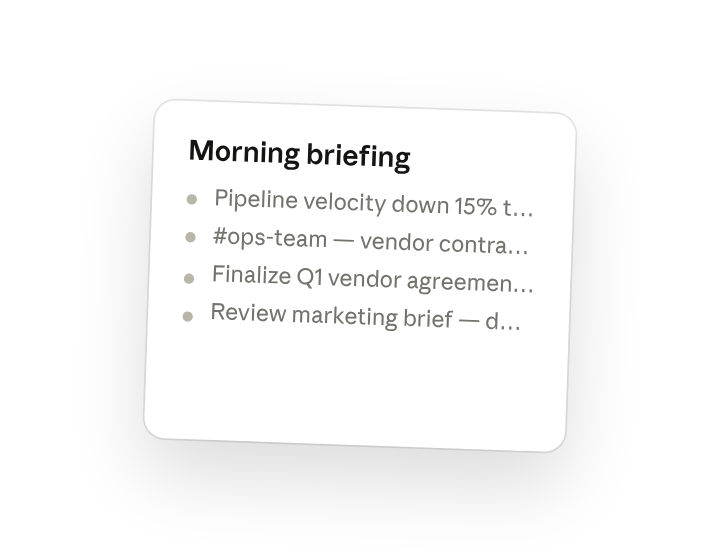
Claude creates a structured briefing organized by priority, with cross-platform context synthesized into single items where relevant. Using the Claude in Chrome connector, Claude opens your dashboard in a new browser tab and reads it directly, pulling metrics and context alongside your Slack and Notion data.
Here's your morning briefing for January 22:
Dashboard alerts
- Pipeline velocity is down 15% this week — I found a related thread in #sales where Maria mentioned two deals slipping to next quarter.
- Support ticket volume trending up — 23% increase over the last 3 days.
Threads where you're needed
- #ops-team — Lisa tagged you about the vendor contract renewal. Related to your Notion task due Friday.
- #leadership — Discussion about headcount planning. You weren't tagged but it relates to your hiring request.
Tasks due this week
- "Finalize Q1 vendor agreements" — due Friday, blocked on budget confirmation
- "Review marketing brief" — due tomorrow
4. Follow up prompts
Continue the conversation with Claude to refine, expand, or explore further.
Go deeper on a dashboard alert
Get the full context behind a metric. Claude pulls the related threads, tasks, and history so you understand what's driving the number.
"Tell me more about the pipeline velocity drop. Pull the full thread from #sales, any related tasks, and what's been discussed about those slipping deals."
Draft a response with full context
Move from briefing to action. Claude drafts a reply using everything it knows about the topic — the thread history, related tasks, and your current priorities.
"Draft a response to Lisa's vendor contract thread. I want to confirm we're moving forward but need to flag the budget dependency."
Surface everything on one topic
Pull together all mentions of a project, person, or issue across sources.
"What else has been said about headcount planning? Pull from Slack, Notion, and anything on the dashboard related to hiring or team size."
5. Tricks, tips, and troubleshooting
Follow along as Claude works
Claude shows which connectors are being queried in real-time. If your briefing is taking longer than expected, you can see which platform is the bottleneck.
Iterate in the same conversation
Your first briefing request establishes context. Follow-up prompts can refine without re-querying everything.
Briefings run remotely by default
A scheduled briefing that runs in the cloud is ready even while your laptop is closed and follows you across desktop, web, and mobile. The dashboard visit is the exception, because it uses your browser. To keep that step in a scheduled briefing, open the scheduled task in Claude Desktop, add a line to its prompt asking Claude to use Claude in Chrome, and set it to require your computer. The whole briefing then works only while your computer is awake, with Claude Desktop and Chrome open.
6. Ready to try for yourself?
Connect your platforms to Claude and start your day knowing where your attention is needed most.