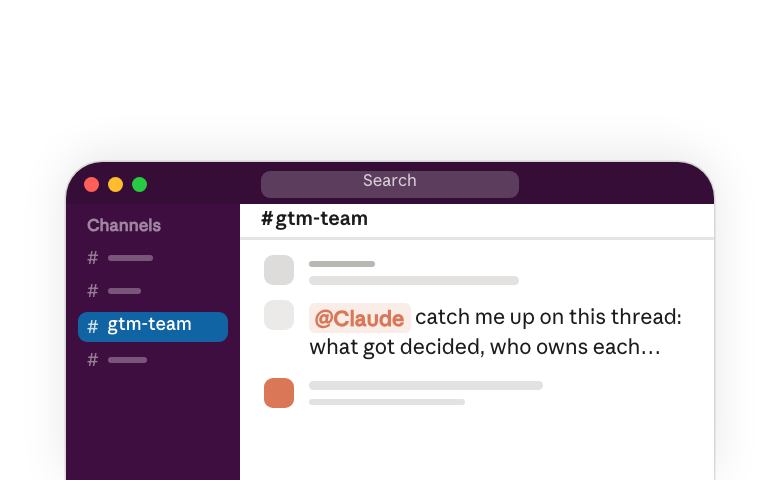
Tag Claude(opens in new tab) in a thread and tell it what you want. It reads what it needs (the messages and files in that channel, plus any tools your team has connected), does the task, and posts the result in the same thread. Claude tags you back, so you stay in the conversation: read what it sent, reply with a change, or hand the thread to a teammate. Tagging is how most tasks start, though once Claude is active in a channel it can also pitch in on its own(opens in new tab) when it sees a way to help.
Most questions are answered in a few seconds. Bigger tasks, like drafting a doc or fixing a bug, take longer; Claude lets you know it's on it right away, often with a quick reaction, then works in the background and shows you its progress, so you're not sitting and waiting on it.
What to expect from Claude Tag
What you can ask for
Claude replies in whatever form fits the task. You'll see these in the examples below:
- A reply — A message in the thread, the same as any teammate's.
- A file or chart — Attached to the thread, with a note on the sources behind it.
- An interactive page — A page anyone in your org can open; reply with a change and the same link updates.
- Something Claude keeps current — Any of these, updated in place over time so it stays current without anyone asking; good for a digest, an index, or a standing report.
- Work done in a connected tool — A pull request opened, a ticket filed, or a record updated, with the result posted back in the thread.
Where you work with Claude
In a channel, you're working in the open: whatever Claude posts, everyone in the channel reads. In your DM, you're working privately: only you see what Claude sends, and there it can also use the tools you've connected to your own account, like your calendar, email, or docs. Learn more about what Claude can access in each place(opens in new tab).
How you steer it
You or anyone on the team can shape how Claude works, just by asking. Put a task on a schedule(opens in new tab) so it runs on its own, like a recap every Monday morning. On a bigger task, Claude shows you its plan first, so you can adjust the approach up front and redirect it as it works. Tell it to do something differently and it remembers for next time(opens in new tab), so it fits your channel better the longer you work with it. And how proactive Claude is, from only replying when tagged to acting on its own, is a per-channel setting your admin controls; ask them to turn it on(opens in new tab) where you want it.
What works with no setup
These work the moment Claude is in your workspace, before you connect a single tool. Claude reads and uses what's already in the channel (the messages, the files, the discussion) to complete your task. Start here to see what Claude already understands about your work.
Keep up with busy channels
Claude reads through a thread or channels and tells you what matters, or finds the specific thing you need and shows where it came from.
Turn a discussion into real work
Claude turns the discussion you're having in the channel into something concrete to work from. Take it from there yourself, or keep working on it with Claude in the thread.
Hand off the ongoing work
You set these up once and Claude runs them on its own(opens in new tab) until you stop it.
Connect the tools you already work in
So far Claude has worked from what's in the channel. When your admin connects a tool to a channel(opens in new tab) (your codebase, your CRM, your data warehouse, your tracker) Claude can read from that tool and act in it, from the same thread.
With both your channel's past work and your connected tools, Claude does the work with an understanding of your channel(opens in new tab), not as a generic assistant. To see what it can reach at any time, just ask: @Claude what tools can you use in this channel?
In an engineering channel
With your codebase connected, Claude reads code, writes fixes, and opens pull requests under its own account, reporting each step back into the thread where the bug came up.
In a customer or feedback channel
With your CRM and support tools connected, Claude pulls from account notes, support tickets, and feedback channels at once, and shows the messages and accounts behind every claim.
In a data or metrics channel
With your warehouse connected, Claude writes the query, runs it, and posts the chart with the SQL right there in the thread.
In a docs or policy channel
With your document store connected, Claude reads the current version and answers from it, quoting the section and linking to it.
In your team's working channel
With your ticket or project tracker connected, Claude reads the tracker and the channel discussion together and tells you who's blocked, on what, and for how long.
Learn more
- Best practices for working with Claude Tag(opens in new tab): The how-to: tagging, reviewing results, and habits for the first weeks.
- How Claude Tag works(opens in new tab): The product docs, including memory, identity, and what Claude can access in each place.
- Admin setup guide(opens in new tab): Connecting tools, scoping access per channel, spend controls.
- Security and data handling(opens in new tab): How Claude's access is scoped and what stays in your workspace.
- Help center(opens in new tab): Troubleshooting and account questions.